
Troubleshooting and FAQ
Start with Test connection in the connection's form: it reports the failure with the server's own message, and names the server version where that helps.
Connection errors
The host cannot be reached
Check the host and the port first (the form says "The host is missing." or "The port must be a number from 1 to 65535."). Then look at what sits between you and the server: an SSH tunnel, a proxy, a port forward, or a command around the connection that brings a VPN up (Network page). Each adds its own message, below.
TLS
On the Network page, SSL mode decides what is checked (see Connect).
- A server that refuses an unencrypted connection needs
requireor above; a server with a certificate your computer does not trust needsverify-caorverify-fullwith the CA certificate (PEM), orrequireto encrypt without checking. - "invalid certificate" and "invalid root certificates" mean a PEM file that cannot be read: check that it is the certificate itself, not a key.
- "a client certificate needs both the certificate and its key": fill in Client certificate (PEM) and Client key (PEM) together. "invalid client certificate or key" means they do not match or are not PEM.
- Redis, Elasticsearch and Cassandra take TLS from an SSL mode of
requireor above.
SSH
Errors begin with SSH <user>@<host>:<port>:.
no answer within 10 sorcannot reach <host>:<port>: the SSH server (or the proxy in front of it) is not reachable from here.cannot read the key <path>: the Private key file is missing, unreadable, or needs its passphrase.no SSH agent is running: start your SSH agent, or use a key file or a password.- A refused password or key is the server's answer: check SSH user and the method.
- A server whose key changed since the first connection is refused. The keys are those of
~/.ssh/known_hosts, shared with OpenSSH: remove the old line there if the change is expected.
Proxy
Errors name the proxy, such as SOCKS5 proxy host:1080: … or HTTP proxy host:3128: ….
no answer within 10 s: the proxy does not answer.the proxy asks for a user and password, or refused them: write them in the URL (http://user:password@host:3128).cannot reach <host>:<port>: …: the proxy answered but could not reach the database.- A URL that is not understood is reported as
proxy "<url>": …. A port forward goes alone: remove the SSH tunnel or the proxy.
Keychain
keychain error: …, or "the system has no keychain to save the password in": on Linux a Secret Service such as GNOME Keyring or KWallet must be running. Without one, set a master password (Settings › Master password) or choose Ask every time for the password.- "No password is saved for this connection: it will be saved in the keychain." is only a notice.
- Passwords imported from another tool without theirs (DBeaver with its own master password, for one) are asked at first use.
Master password
- "PlatypusDB is locked" or "Enter the master password to use them": type it and click Unlock. Idle locking is in Settings › Safety; production connections reconnect when used.
- It cannot be recovered. If it is lost, the saved passwords are lost: set the passwords again in each connection.
- To go back to the keychain, Settings › Master password › Turn off… (it asks for the current one).
A driver download fails
DuckDB, Snowflake, BigQuery, Databricks, Trino, other ADBC drivers, Oracle and IBM Db2 download their library the first time they are used. The popup says "Downloading the <name> driver…" with a Cancel, and a failure shows a message with Try again.
the download failed (check the internet connection)orcannot reach the driver registry: no route to the registry; check the network, the proxy or the firewall, then Try again.the downloaded driver is corrupted (its SHA-256 does not match): the file was altered or cut in transit; try again, and report it if it persists.no <name> driver for this platform, or "PlatypusDB downloads DuckDB on Windows, macOS and Linux, on x64 and ARM processors; not on this system.": there is no build for your system.the driver's license (…) does not allow downloading it here: the app does not download drivers whose license forbids it.- IBM Db2 is reached through ODBC on Windows only for now; registering its driver asks for administrator permission (User Account Control). Answer yes, or the driver is not registered.
- Cancel leaves the form usable; the offer returns at Test connection or at the first opening.
Settings › Drivers lists what is downloaded, removes a driver, and shows the system's ODBC drivers. A removal Windows refused is finished at the next start.
An agent does not see a connection
Work down this list.
- Access is off. The agent answers "
<name>is not available to agents". In Settings › Agents › Security, set the connection to Read only or Read and write. A connection that came from a shared project starts at Off on your computer. - A master password. The agent answers "the saved password of
<name>is locked by PlatypusDB's master password, which agents cannot enter". Give that connection a password command or.pgpass, or turn the master password off. - The password is asked every time. The agent answers "
<name>asks for its password at each connection, and agents cannot type it". Save it in the keychain, or use.pgpassor a password command. - Writes refused. Production and read-only connections are never more than read only; on others the change waits for your answer in the app (Agents).
- The client was not restarted after Install, or the entry is missing: Settings › Agents › Setup says whether PlatypusDB is in the client's file.
- A portable copy or another profile. The agent reads the connections of the profile it was started from; a client set up with the installed app does not see a portable copy's
datafolder.
The portable copy
- It is an executable with an empty
datafolder beside it. If the folder is not there at start, the app uses the system's folders instead, so a renameddatafolder looks like lost connections: rename it back. - Everything is in
data, logs included; the folder moves with the executable. Saved passwords stay in the system keychain of the computer, unless a master password keeps them in the folder too: on another computer, either set the master password first or enter the passwords again. - It does not update by itself: replace its executable with the new one. The welcome screen says
portablebeside the version.
Where the data and the logs are
The app keeps connections and settings (connections.toml, settings.toml, and secrets.vault with a master password) in its config folder, and history, scripts, downloaded drivers and logs in its data folder, both named dev.platypusdb.desktop:
| System | Config folder | Data folder |
|---|---|---|
| Windows | %APPDATA%\dev.platypusdb.desktop | %APPDATA%\dev.platypusdb.desktop |
| macOS | ~/Library/Application Support/dev.platypusdb.desktop | the same |
| Linux | ~/.config/dev.platypusdb.desktop | ~/.local/share/dev.platypusdb.desktop |
A portable copy keeps everything in its data folder, and the environment variable PLATYPUS_DATA_DIR puts everything in the folder it names.
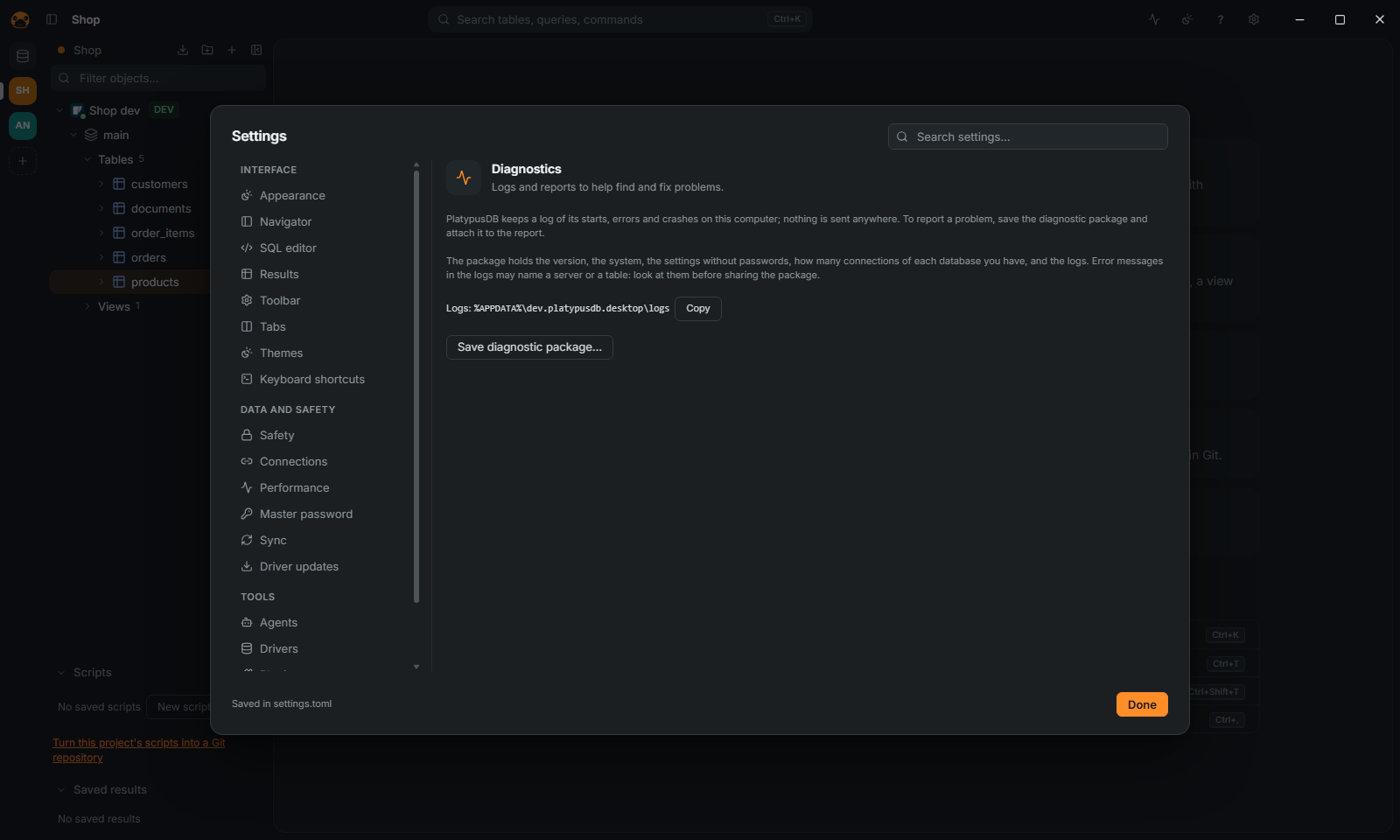
The log is logs/platypus.log in the data folder: one line per start, error and crash, rotated at 1 MB with two older files (platypus.1.log, platypus.2.log). Settings › Diagnostics shows the folder (Copy) and Save diagnostic package…, a zip with the version, the system, the settings without passwords and the logs, to attach to a bug report. Nothing is sent anywhere; read the logs before sharing, since an error may name a server or a table. After a crash, the next start offers the same package.
Updates
- At start the app looks for a newer release and shows "PlatypusDB
<version>is available" with Later and Install and restart. - A portable copy only says so: replace its executable. An install from a package manager (Flatpak, the AUR) says so and leaves the update to it.
- Downloaded drivers update separately: Settings › Drivers › Check for updates, or the settings Look for driver updates at startup (on, once a day at most) and Install driver updates by itself (off). The built-in drivers update with the app.
FAQ
Can I use PlatypusDB offline? Yes, with a local database. Downloads (drivers, updates) need the network.
Where do I report a bug? On the issue tracker, with the diagnostic package if you can.
Where are the shortcuts? SHORTCUTS.md, and Settings › Keyboard shortcuts to change them.