
Features
Everything PlatypusDB does, area by area. The README has the short version. To do something step by step, see the user guide.
Databases
| Database | How it connects | Notes |
|---|---|---|
| PostgreSQL 12+ | native protocol | Several databases per connection, partitions, PostGIS, arrays and composite types |
| MySQL 5.7+, MariaDB 10.6+ | native protocol | On MySQL before 8.0.16 plans are read from EXPLAIN FORMAT=JSON; EXPLAIN ANALYZE needs 8.0.18 |
| SQL Server 2017+, Azure SQL | TDS | TOP (n), [names], several result sets |
| ClickHouse | HTTP interface (8123, or 8443 with TLS), Arrow results | Browsed, queried and designed; no data editing in the grid |
| SQLite | embedded | |
| DuckDB | embedded, Arrow results; DuckDB's library downloaded on first use | Also opens CSV, JSON, Parquet and Excel files as databases |
| libSQL / Turso | Hrana over HTTP | Token in the password or in authToken |
| MongoDB 5+ | official driver | mongosh syntax; transactions on replica sets and sharded clusters; documents of a find edited in the grid by _id |
| Redis 6+ | redis crate (RESP3, rustls) | Commands in the editor; key types as tables, edited in the grid; JSON with RedisJSON |
| Elasticsearch 8 and OpenSearch 2 | HTTP API (reqwest, rustls) | Requests as Kibana's console writes them, and SQL; indices as tables, edited in the grid |
| Apache Cassandra 4+ and ScyllaDB 5.4+ | scylla crate (rustls) | CQL; keyspaces as schemas, tables, materialized views, types and functions in the navigator; edited in the grid by full primary key; no row count, sort or filter in the data viewer |
| CockroachDB, YugabyteDB, TimescaleDB, Supabase, Neon, AlloyDB | PostgreSQL driver | Profiles with their default port, user, database and SSL |
| Snowflake, BigQuery, Databricks, Trino | ADBC driver, downloaded on first use | Queries, results, navigator and autocompletion; no data editing, explain or manual commit yet |
| Any database with an ADBC driver | ADBC driver library you choose | Its URI and options as the driver documents them; an optional entrypoint symbol for libraries that do not export AdbcDriverInit (DuckDB: duckdb_adbc_init) |
| Oracle | native driver with Oracle Instant Client, downloaded on first use | PL/SQL blocks (end them with a / line in scripts), real cancel, navigator, DDL; Windows needs the Visual C++ Redistributable, Linux libaio |
| IBM Db2 | IBM's ODBC driver, installed on first use (Windows) | Registering the driver asks for administrator rights (UAC) |
| Any ODBC driver or DSN (Windows) | the system's ODBC driver manager | A DSN, or a driver and its connection string |
The versions in the table are the oldest the app is checked against. The conformance suite runs on that version for PostgreSQL, MySQL, MariaDB, SQL Server and MongoDB; for Redis 6 (Redis Stack 7.4), Cassandra 4 (Cassandra 5) and ScyllaDB 5.4 (ScyllaDB 2025.1) it runs on a newer one, and Elasticsearch and OpenSearch are tested on 8.15 and 2.17. An older server still connects, with a message that some features may not work; Cassandra older than 4.0, ScyllaDB older than 5.4, Elasticsearch older than 7.10 and OpenSearch older than 1.0 are refused. Errors name the server they come from, e.g. Unknown column 'x' in 'field list' (MySQL 5.7.44), since the reason often depends on the version. The database pages say more for each one.
The ADBC drivers come from the dbc driver registry (Columnar): the first connection that needs one asks to download it, checks its SHA-256 and keeps it with the app's data. Oracle Instant Client and IBM's ODBC driver come from Oracle's and IBM's sites in the same way, with their license shown first. The download is offered as soon as the database is chosen for a new connection, over the form (the app reads only what is on this machine, so it works offline); Cancel leaves the form usable, and the offer returns at Test connection or at the first opening. Settings › Drivers lists and removes them, and shows the ODBC drivers and data sources of the system. A downloaded ADBC driver can be updated from there (the app looks for new versions once a day, or on Check for updates; Driver updates in Settings can install them by itself), and Versions… installs or goes back to another version, keeping the others. After a change the saved connections that use the driver are tried (connect, version, schemas, SELECT 1), with Go back if one fails. The built-in drivers update with the app.
Portable copy
Put the executable in a folder with an empty data folder beside it, as with VS Code. Connections, settings, history, scripts, logs and the web view's storage then live in data, and the folder can move to another machine or a USB stick. Saved passwords stay in the system's keychain unless a master password keeps them in the folder too. A portable copy updates by replacing its executable; the welcome screen says portable beside the version.
Package managers
Besides the installers of each release, the app can come from winget (winget install PlatypusLabs.PlatypusDB), Homebrew (brew install --cask platypusdb), the AUR (platypusdb-bin) and Flathub (dev.platypusdb.desktop), once each package is published. Installed from Flatpak or the AUR, the app says when a new version is out but leaves the update to the package manager.
Connections
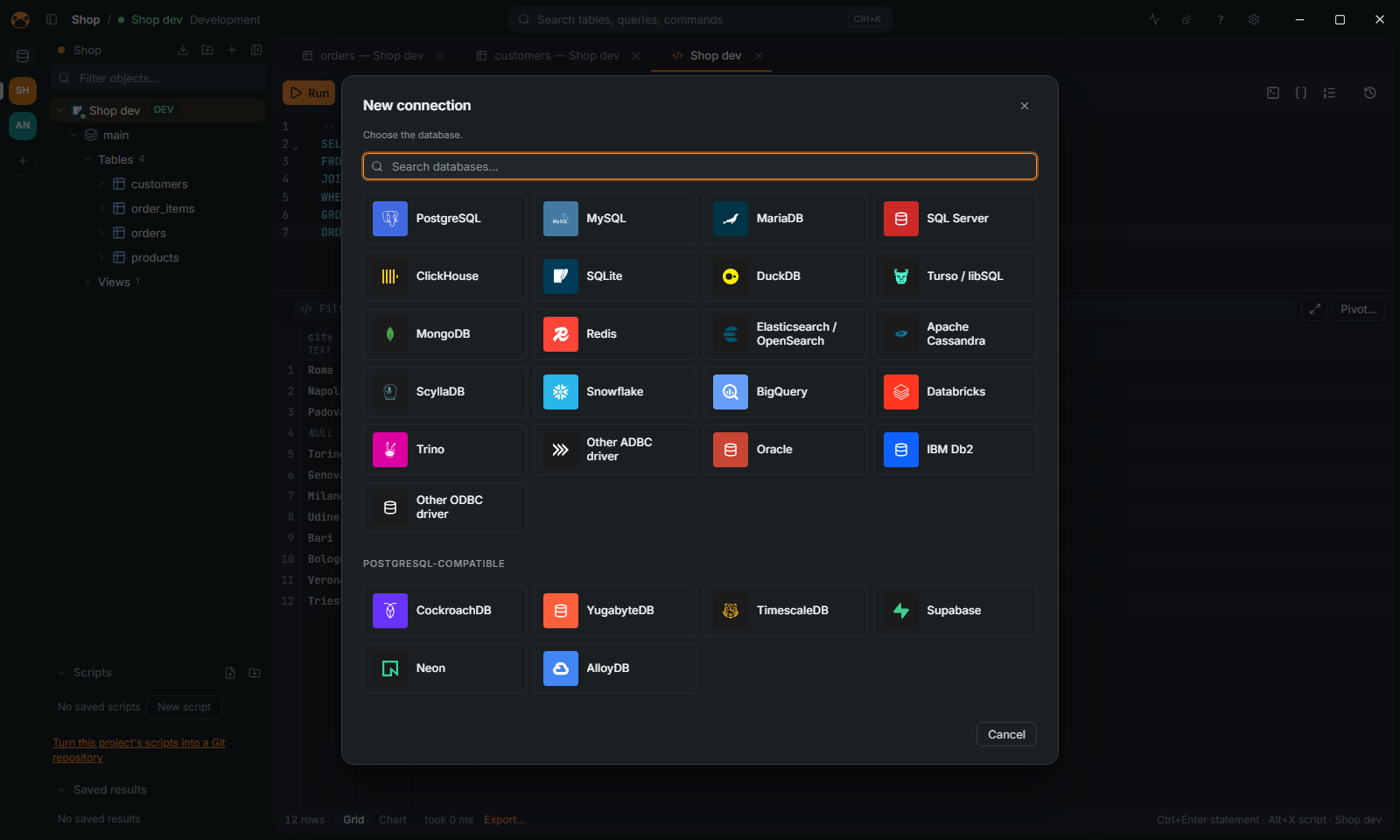
- A new connection starts from a grid of database logos, with a search on top (
Entertakes the first match); the+of the navigator opens it, and so does a right-click on a connection or below the list. Or paste a connection under the logos: a URL (postgres://,mysql://,sqlserver://,clickhouse://,libsql://,mongodb://,redis://,rediss://,elasticsearch://,opensearch://), a JDBC URL or an ADO.NET / ODBC string (Server=tcp:db,1433;Database=shop;User Id=sa;…), and the form opens filled in for that database. The driver is set by the choice: Back returns to the logos, and a URL pasted in the form for another database offers to go back. Windows logins and SQL Server named instances without a port are pointed out. Copy as URL in a connection's menu copies its URL without the password; Duplicate (also in the command palette) saves a copy with its tunnel, init script and passwords, and opens it for editing. - Environment variables: any field of a connection, the password and the SSH tunnel's included, can read
${env:NAME}: from the app's environment, then from the connection's.envfile (Variables file in its dialog). The connection keeps the reference, not the value; a variable that is not set says which.$${writes a plain${. - Poolers: a PostgreSQL connection behind PgBouncer, Supavisor or Neon's pooler in transaction mode runs its statements unnamed, so that each one keeps to the server session of its transaction. The dialog suggests the mode for Supabase's pooler on port 6543 and for Neon's
-poolerhosts;?pgbouncer=truein a pasted URL sets it too. - Import connections from DBeaver, DataGrip, pgAdmin and
pg_service.conf, with their folders. A DBeaver project export (.dbp) brings its projects too, optionally gathered in a folder of the project rail. From DBeaver (a.dbpor a workspace) the saved user names and passwords come along too, SSH tunnel ones included: the passwords go to the keychain (or the master-password vault) like typed ones. Untick Import saved users and passwords to bring only the user names. Passwords DBeaver protects with its own master password cannot be read; those connections ask for theirs on first use, as do the ones of the other tools. A connection already saved (same server, database and user) starts unticked; ticked, it replaces the saved one, which keeps its projects, tabs and the passwords the file does not bring. Untick Replace the connections already saved to add it beside instead. - Export connections to a
.platypusconnfile, to take them to another computer or give them to a colleague: pick them one by one, by folder or by project, and keep or drop the projects and folders they are in. Without a password the file holds no credential; with one (8 characters at least) it is encrypted (Argon2id and AES-256-GCM) and may carry the saved passwords, SSH and jump host ones included. Like a shared project, the file never carries certificate or key paths, password commands or the shell commands run around a connection. Import it from Import connections › PlatypusDB: the connections get new ids, agents are kept out of them until you let them in, and an encrypted file asks for its password. The format is described in CONNECTIONS_FILE.md. - Folders: connections inside a project go in nested folders (drag them, or Move to folder); projects in the rail go in folders too, by dropping one project on another. In the rail, drag a project to the edge of another to move it there (a line shows where), onto a folder to put it inside, inside an open folder to reorder it, or to the end of the rail to take it out;
Esccancels a drag. Connections and folders keep the order you give them: drag one above or below another, or press Alt+Up / Alt+Down; a connection dropped onto another makes a new folder of the two. Connections selected with Ctrl+click or Shift+click are dragged, and deleted from the menu, together. Folders stay open or closed as you left them, across restarts. - TLS with libpq
sslmodesemantics, custom CAs, and client certificates for PostgreSQL and MySQL. - SSH tunnels with a password, a key or the SSH agent, optionally through a jump host; server keys are checked against
~/.ssh/known_hosts. Network profiles share one tunnel and SSL setup between connections. - Proxies: a SOCKS5 or HTTP proxy (
socks5://user:password@host:1080,http://host:3128) in front of the database, or of the SSH server when there is a tunnel. SOCKS5 resolves the server's name on the proxy. - Port forwards from a cloud's CLI:
kubectl port-forwardto a Kubernetes service or pod, or an AWS Systems Manager session through an EC2 instance to a private host. The app starts it on a free local port while the connection is open; the CLI must be installed and signed in. - Commands around a connection, e.g. to bring a VPN up and down: one before the first session that needs it, which waits for it (a minute at most) and fails with it, and one after the last of those sessions closes. They run in the system's shell, whose
${VAR}they keep. - Passwords from the system keychain, asked every time, read from
.pgpassor printed by a shell command. Password managers: pick 1Password, Bitwarden, HashiCorp Vault or AWS Secrets Manager and give the secret's reference; the app runs the manager's CLI, which must be installed and signed in. A command that prints a JSON secret gives itspasswordfield. A master password can keep the saved ones in an encrypted file instead (Argon2id and AES-256-GCM). - Cloud sign-in without a password: AWS IAM (RDS) and Google Cloud IAM (Cloud SQL) for PostgreSQL and MySQL, Microsoft Entra ID for PostgreSQL, MySQL and SQL Server. The token comes from
aws,gcloudorazat each connection and is never saved. SQL Server also signs in as the Windows user (SSPI: Kerberos or NTLM) on Windows. Imported or pasted Windows and Entra ID logins keep their way to sign in. - Kerberos for PostgreSQL in the Windows (SSPI) and Linux (GSSAPI) builds: a ticket from
kinitor a keytab (KRB5CCNAME,KRB5_CLIENT_KTNAME), or the Windows session's, and a service name that defaults topostgres. No password is asked, saved or sent, and a server that does not ask for Kerberos is refused. A connection without a ticket says what to run.psql,pg_dumpandpg_restoresign in the same way. Tested with a real KDC from Linux; the real login through SSPI is not tested yet. - Test connections: Test connections in a project's menu, in the navigator's menu or in the command palette tries every connection of the project, four at a time, and lists how each went.
- Connection types Development, Test and Production, with colors and a read-only flag. The connection form groups its fields under Connection and Authentication; type, color, read-only and agents' access are on the Appearance and safety page. Production shows a red PROD badge and opens in manual commit. A read-only connection runs only statements that read and call nothing that acts outside the transaction or on the server's files (
pg_terminate_backend,dblink_exec,GET_LOCK,LOAD_FILE, DuckDB'sread_csv…), and where the database can its session is read-only on the server too (PostgreSQL, CockroachDB, YugabyteDB, MySQL, MariaDB, SQLite, DuckDB, ClickHouse), so that a function that writes fails there as well; marking or unmarking it applies to the session at the next connect. - After connecting, a default schema, a time zone and bootstrap statements run on every connection and reconnection.
- Idle sessions are checked every minute: the status bar shows the latency, and a connection the server dropped is reopened, before the next statement too. Editing a connection reopens the sessions of its open tabs with the new settings; a tab with an open transaction asks first.
Navigator and objects
- Databases (PostgreSQL), schemas, tables, views, routines, triggers, types, extensions and events, loaded lazily, with a filter. PostgreSQL partitions sit under their table.
- Estimated rows and sizes of tables and indexes.
- Bookmarks, per-connection filters that hide schemas or objects by name (
tmp_*), and a Simple view with only tables and views. - Large schemas stay quick: with 10,000 tables the tree opens in a fraction of a second and renders only the rows in view.
- The tree is cached on disk: it shows at once on start, and offline. Nothing connects until you open it. Each connection shows its database's logo, ringed with the color chosen for it (none by default, whatever its type), and its state (an open session, a failed connection) as a small mark on the logo.
- A PostgreSQL or SQL Server connection that names its database shows only that one, its schemas right under the connection, as in DBeaver. Show all databases, beside the Database field, lists the server's other databases too (the named one open); a connection that names none lists them all. A PostgreSQL connection imported from DBeaver keeps its setting.
- A table's menu keeps the main actions at the top, groups the rest in submenus (Generate SQL, Maintenance, Data) and puts Truncate and Drop last; the browser's own menu never shows, except in text fields. So do a connection's (New, Open, Tools, Export), a schema's (Data, Analyze, Create) and the SQL editor's (Run, Explain). Index rows have their menu too. Copy actions confirm with a short notice at the bottom of the window.
- A field left empty or out of range when a form is sent shows the app's own message under it, in the interface's language (Fill in this field., At most 65535.), in place of the browser's bubble; typing in the field or leaving it clears it.
- Type the start of a name with the tree focused to jump to the next row that matches.
- Generate SELECT, INSERT, UPDATE, DELETE, UPSERT or DDL; rename, truncate and drop with a preview of the statement.
Ctrl/Shift+click selects several objects, for example to get the DDL of many tables at once: the tab opens at once and fills a block of objects at a time, with how far it is ("DDL: 30 of 300 objects") and Stop; an object whose DDL cannot be read becomes a comment saying why. PostgreSQL reads the tables and views of a block with a few catalog queries for all of them. - Object details: properties, columns, indexes, constraints, foreign keys, incoming references and the DDL of any object. The page leads to everything about the object: its data, the table editor, the DDL and Show in ER diagram.
- Search object names, columns and the source of views, routines and triggers across a database; or the text of every row of a schema's tables, opening the matching rows.
Notes, comments and schema documentation
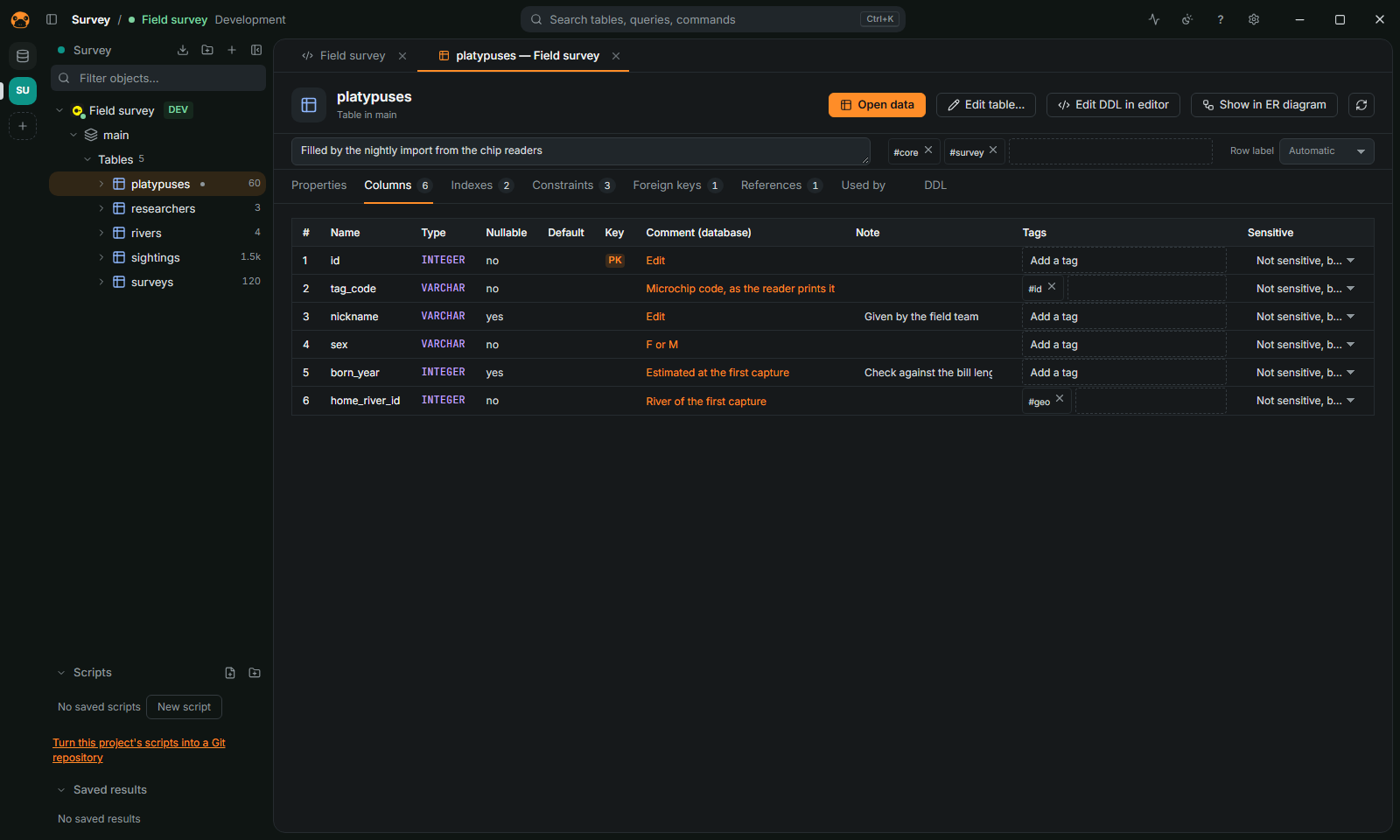
- Notes and tags on tables, views and columns, kept on your computer and never written to the database: in the object tab, for the object and for each of its columns. The navigator marks the annotated objects and shows the note on hover, and
#piiin its filter keeps the objects taggedpii. The data viewer marks the annotated columns in its headers, and completion shows the note and tags of what it offers. They follow the renames made in the app. - Database comments show beside the notes. Those of tables and their columns edit in the object tab, with the statement shown first; those of views are read-only. SQLite, libSQL and MongoDB, Redis and Elasticsearch have none.
- Row label: the column that names a table's rows where foreign keys point to it, picked in the object tab or from a header's menu in the grid.
- Sensitive columns (personal data, secrets): the rules of Settings › Safety name them by name or type (emails, phones, passwords…), and the Sensitive column of the object tab marks a column sensitive or not over the rules, kept with the notes. Masking hides them, the data viewer's headers say which they are, and an export can keep, mask or leave them out.
- Agents read the notes too:
describe_table,list_objectsand the table resource add your notes and tags (and, on columns, whether you marked them sensitive, never their values), andsearch_objectsfinds objects by comment, note or#tag. See AGENTS.md. - Used by, in a table's tab: for each column, the views, routines and triggers of its schema and the saved scripts of the project that name it, with the line, and the columns named nowhere. A text counts when it names the table and the column (a column of the same name of another table in it counts too). Comments and strings do not; a PostgreSQL routine's
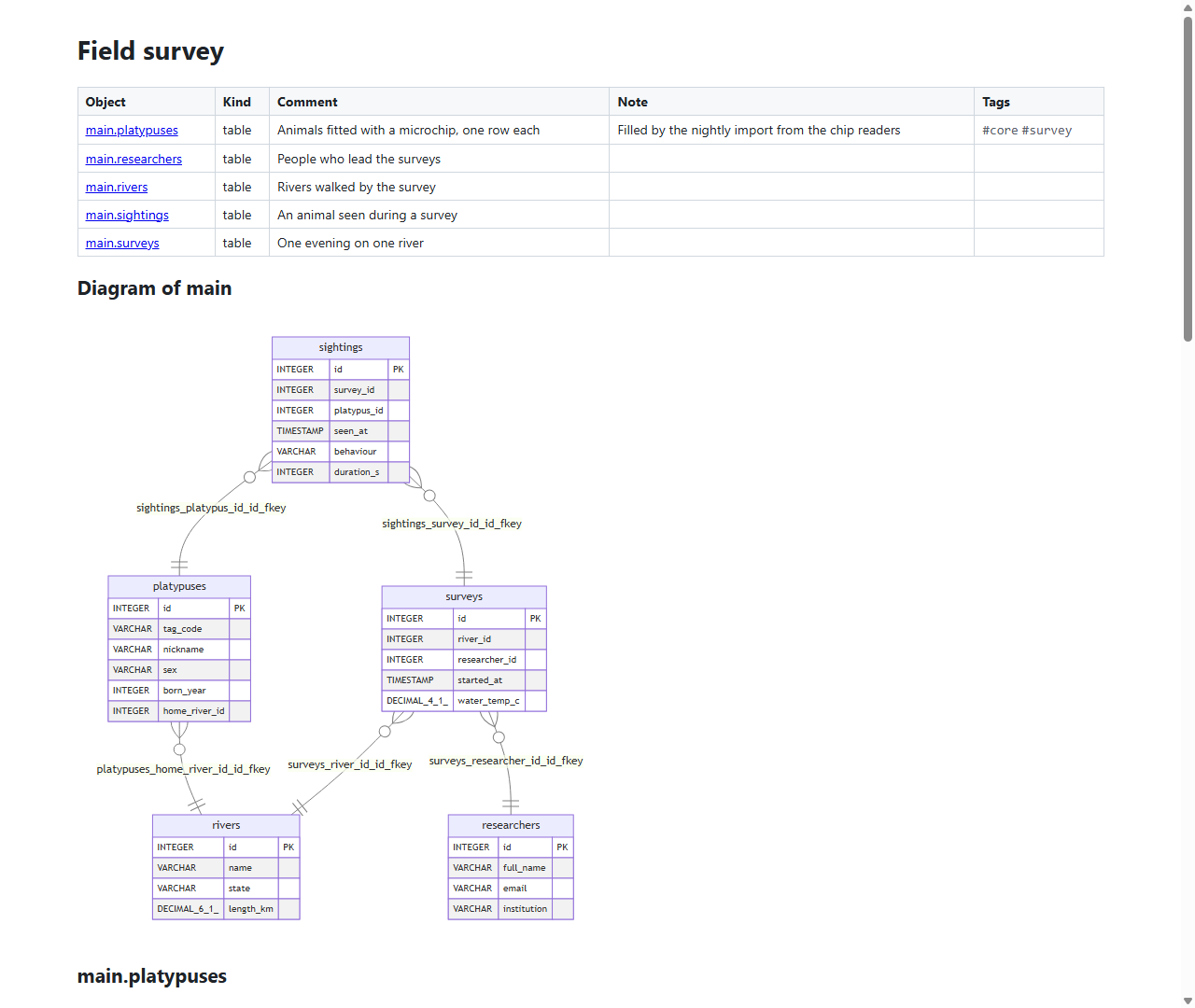
$$body does. - Schema documentation: right-click a schema, Export documentation…, for a Markdown file or a single HTML file (it works offline) with the columns, keys, indexes, comments, notes, tags and an ER diagram of each schema of up to 100 tables.
SQL editor
- Run the statement under the cursor (
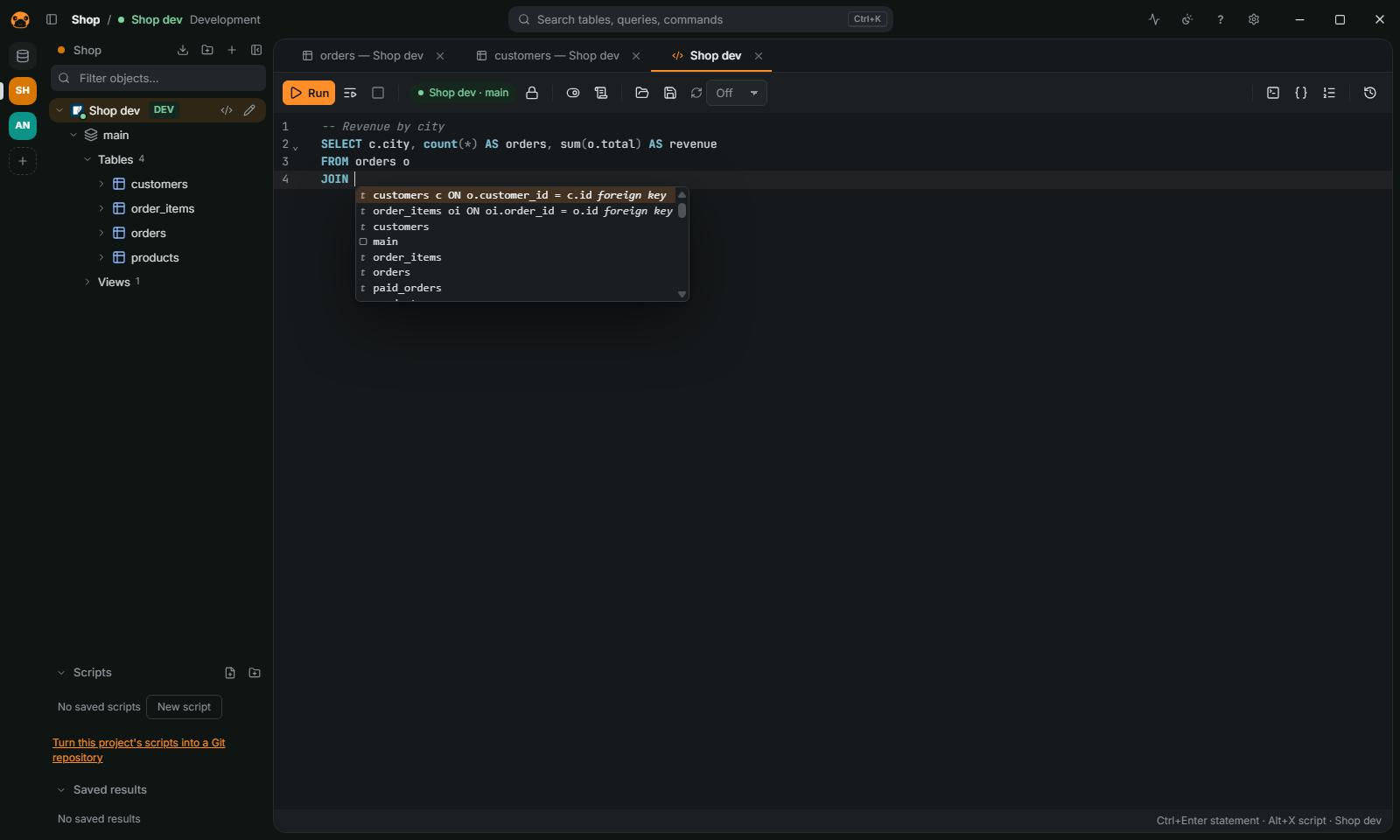
Ctrl+Enter) or the whole script (Alt+X). Statements end at a;, or, as in DBeaver, at a blank line before a word that starts a new one (SELECT, INSERT, UPDATE…). The results panel opens with the first run: until then, and on a DDL, the editor takes the whole tab. Errors are pointed out in the text, and the error panel gives their line and column with Go to the error. - Completion of keywords, tables, columns and built-in functions with their signature. The columns offered are those of the tables the statement under the cursor reads (even when FROM comes later), and
alias.completes the columns of a table, a CTE or a subquery. A column that several of those tables have goes in with its alias, and names that need quotes are quoted on insert.JOINoffers the related tables with alias and condition from the foreign keys;JOIN t ONoffers the condition. Tab or Enter accepts; Enter after a word typed exactly as the entry starts a new line. While a snippet's fields are active, Tab moves to the next field. - Formatter (
Ctrl+Shift+F) with configurable keyword case and indentation; the same setting gives the case of completed keywords. - Line commands, multiple cursors, folding, an outline of the statements, and
Ctrl+clickon a name to open its object. - Parameters (
:id,?) and variables (${name}) asked in a dialog and kept in a Variables panel; client commands@set,@echo,@include file.sqland@export file.csv. A${name}value goes into the SQL as it is, so a statement with variables is checked again filled in: a read-only connection refuses it if it now changes something, and a change the values add (a lostWHERE, a write on production) is asked about. The values a shared query comes with are asked once, filled in, before they run. - Editable snippets (
selthenTab), query history,.sqlfiles. Ctrl+\runs into a new result tab; a terminal mode shows results as text; a script can run with the localpsql,mysql,sqlcmdorsqlite3.- Run on connections (editor menu): the script, or the selection, runs on each connection chosen (e.g. one database per customer), four at a time, with each connection's outcome; the last result with rows of each comes together in a new tab, with a
connectioncolumn. Changes are asked once, then by each connection's Safety checks; read-only connections are skipped. - Vim mode (Settings › SQL editor): normal, insert and visual modes, the mode shown under the text,
:wto save the script. Vim's Ctrl keys (Ctrl+W,Ctrl+O,Ctrl+F…) are Vim's while the editor has the focus; the app's other shortcuts keep working. - A linter marks unknown columns, joins without a condition and
SELECT *on production; comments are spell checked. - Saved scripts:
.sqlfiles per project in the Scripts panel, with folders, drag to move, and the connection each one opens on.
Results and the data viewer
- The grid is drawn on a canvas and reads rows a page at a time (1,000 ahead of what is on screen); queries can be cancelled.
- Open a table to browse it: its
SELECTgoes in the editor, where aWHEREtyped by hand filters it. - Sort from the header: a click on a column header writes the
ORDER BYof the statement in the editor and runs it again; a second click reverses the order, a third puts back the query's ownORDER BY, or removes the sort when it had none. It works on the results of a query typed in the editor too, when it is one statement that only reads. - Quick filters on the focused value (equal, not equal, in the selected values, NULL or not) go in the editor's
WHERE; a renamed column is filtered on the column it shows, a computed one is filtered in the SQL; Count rows counts the rows of the query in the editor. - Copy with headers or as CSV, JSON, Markdown, HTML, SQL
INSERTor anINlist. - Find in the loaded rows (
Ctrl+F). - Value panel (
F7): long text, JSON and XML formatted, hex and images from binary columns, save to file. JSON in a text column opens indented too, unless the connection's Format JSON found in text columns is off. - Files in cells: a cell is a file when its bytes say so (PDF, PNG, JPEG, GIF, WebP, BMP, TIFF, SVG, ZIP, DOCX, XLSX, PPTX, ODT, ODS, GZIP, 7Z, RAR, TAR, MP3, WAV, OGG, MP4, MOV, MKV, WebM, SQLite), in any column type. A binary cell shows
PDF · 2.3 MBin place of hex (copy, edit and export still use the bytes). A text cell counts too when it holds adata:URL, base64 (also URL-safe or with line breaks) or hex (\x…as PostgreSQL prints a bytea,0x…or plain) that decodes to a known file; ordinary text, hashes and ids never do. The grid menu offers Save PDF… (named from the column), and on several cells of a column Save N files to a folder…: one file each, named from the row'sidcolumn (the row number without one), never overwriting (-2,-3…), with a count of failures at the end. The value panel has a Save PDF… button. Nothing is offered for NULL, for a masked column or on a connection that keeps its data in. - Columns hidden, pinned, moved and resized, with the layout kept per table.
- Conditional formatting (grid menu): rules color a cell or the whole row when a column is equal to a value, contains it, falls in a range or is NULL, or spread a color scale over a number column; the first rule that matches wins. A table keeps its rules.
- Computed columns (grid menu, Columns › Computed columns…): a name and an expression on the other columns of the same row, such as
price * qtyorupper(customer) || ' ' || coalesce(city, '?'), shown after the result's columns. The expressions take numbers,'text', NULL,+ - * / %,||, comparisons, AND, OR, NOT,IS NULLand the functions upper, lower, trim, length, substr, replace, abs, round, floor, ceil, coalesce, nullif, concat and if; NULL in an operation gives NULL, as in SQL. They are only on screen:Ctrl+Ccopies them with the rest of the selection, but Copy as, totals, search, sorting and editing work on the result's own columns. They follow the edits not saved yet, read numbers with the digit grouping of the settings and show as dots when they read a masked column. They work on the text the grid holds, so a text longer than 500 characters counts only that much. A table keeps its computed columns. - Totals of the selection (count, sum, average, minimum, maximum), a record view of one row at a time, counts by value, statistics of the selection, and two rows compared column by column.
- Foreign keys open the row they point to, and the References panel lists the rows of other tables that point at the focused one.
- A map panel draws PostGIS, MySQL and WKT geometries and PostgreSQL's geometric types.
- Read-only results can refresh every few seconds. Dates, time zone, digit grouping and relative times follow the Settings.
Data analysis
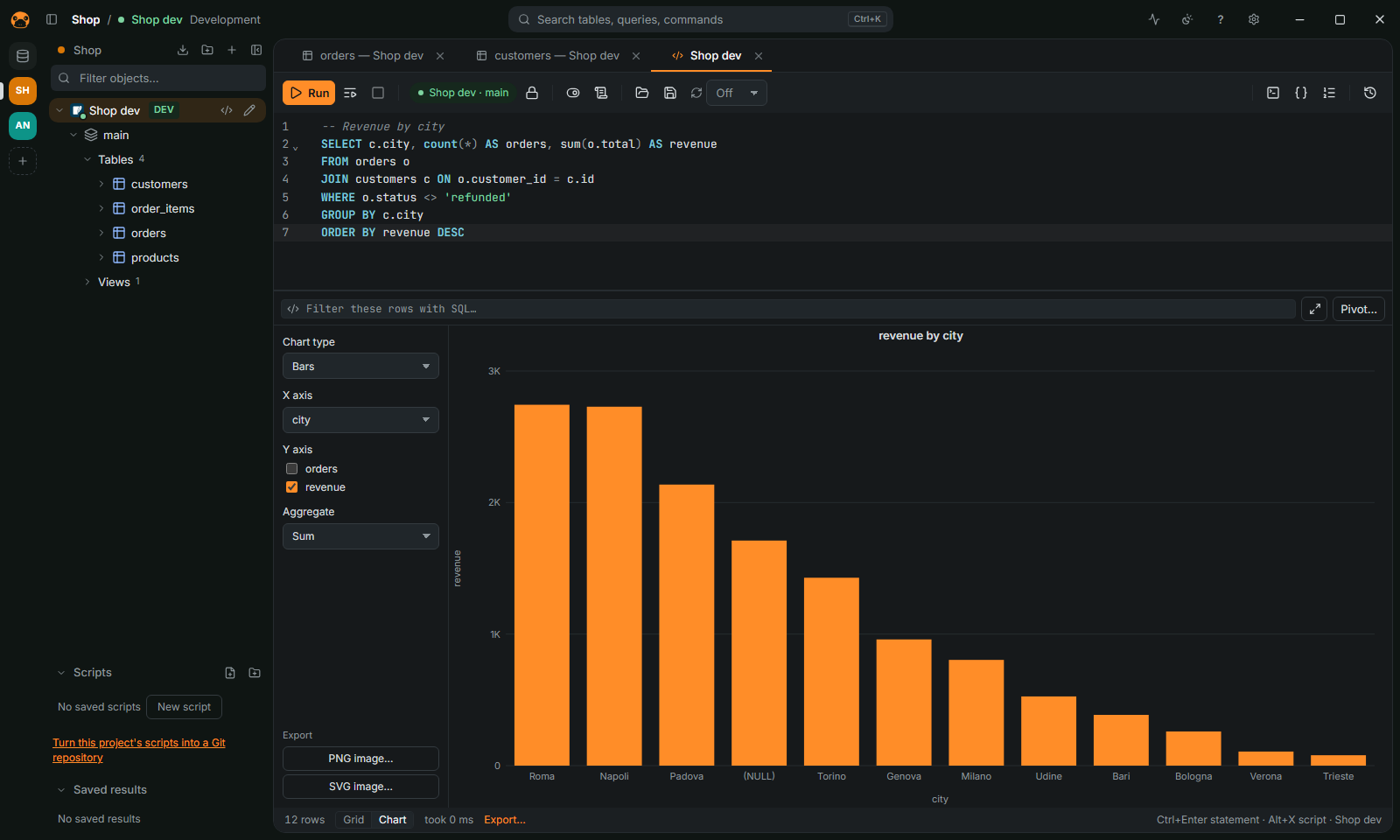
- Charts: a result switches between the grid and a chart (bars, lines, scatter, pie) from the status bar. The columns and the aggregation are chosen beside the chart and kept with the tab for each statement; the chart exports as PNG or SVG. It is drawn from the rows loaded, with at most 2,000 points per series and 50 categories (the rest in Other).
- Column statistics: resting the mouse on a column header shows its NULLs, distinct values, minimum and maximum, and a small histogram (numbers and dates) or the most frequent values (text), over the rows loaded.
- SQL on the result: the field in the bar above a result's grid runs SQL on the rows loaded, not on the database. A clause or a condition applies to the result (
WHERE code LIKE 'B%',ORDER BY name DESC,GROUP BY code,code = 'X'), or a whole query reads the tableresult(andr1,r2, … for each result of the tab, to join them). Enter loads the rows in full, up to the memory limit, into an in-memory DuckDB and the grid shows the output read-only, with copy, export, charts and statistics; × or Escape returns to the result. Ctrl+Enter opens a larger editor, which can also open the query in a new tab. When the statement runs again, the next query loads the new rows. - Compare with previous run: when a statement runs again, its result can be compared with the previous one: rows added, removed and changed (matched by the table's key when it has one), with the old value of each changed cell.
- Notebooks: New notebook in a connection's menu opens a tab of cells, text in Markdown and SQL, run one at a time (Ctrl+Enter, Run) or all in order (Run all, which stops at the first failure). Each SQL cell shows its result as a grid or a chart, and its plan with Plan. The SQL cells are named
c1,c2, … in their order: a cell On the results of the other cells runs in an in-memory DuckDB where their loaded rows are tables of those names, without running them again on the server. Parameters (:name,?,${name}) are shared by the cells: a value missing shows a field above the cells. Changes go through the Safety checks, and a read-only connection refuses them. Save writes a.pnbfile (JSON), which Open notebook… opens again on a connection; Export HTML… writes a standalone page with the text, the SQL, up to 500 rows of each result, the charts, the plans and the parameters' values. Notebooks stay with the workspace; their results run again. - Pivot…: on a result's Query with SQL bar (or the grid menu): rows, a column whose values become columns, a value and its aggregate (count, distinct, sum, average, min, max), totals and sorting. The DuckDB
PIVOTit writes stays in the SQL field, to edit and run again; up to 200 columns. - Query across databases…: right-click tables (of any SQL connections, each with an optional
WHERE) and query them together in one SQL editor: they are copied into an in-memory DuckDB, so a PostgreSQL table joins a MySQL one. Reload sources reads them again. Up to 512 MB of rows in all. - Save result…: keeps a whole result as a Parquet file in the app's data folder. The Saved results panel under Scripts lists, renames and deletes them; Open shows one with grid, charts, statistics and SQL, without connecting to its database.
- Dashboards: right-click a connection, New dashboard: widgets from saved scripts shown as a table, a chart or one big value, side by side in up to three columns, each refreshed on its own, all at once, or every 1 to 60 minutes. Only scripts that just read are run. Dashboards are saved per project and reopened from Dashboards….
- Profile data…: right-click a table or view for a card per column over the first 10,000 to 1,000,000 rows (or all of them): NULLs, empty strings, distinct values, range, mean, quartiles, a histogram of the distribution (its value range on the x axis, the row count on the y axis, each bar's range and count on hover), the most frequent values, the formats of text values (emails, URLs, UUIDs, dates, numbers stored as text, phone numbers, stray spaces) with the values that do not fit, and outliers. Click a value to see its rows.
Data editor
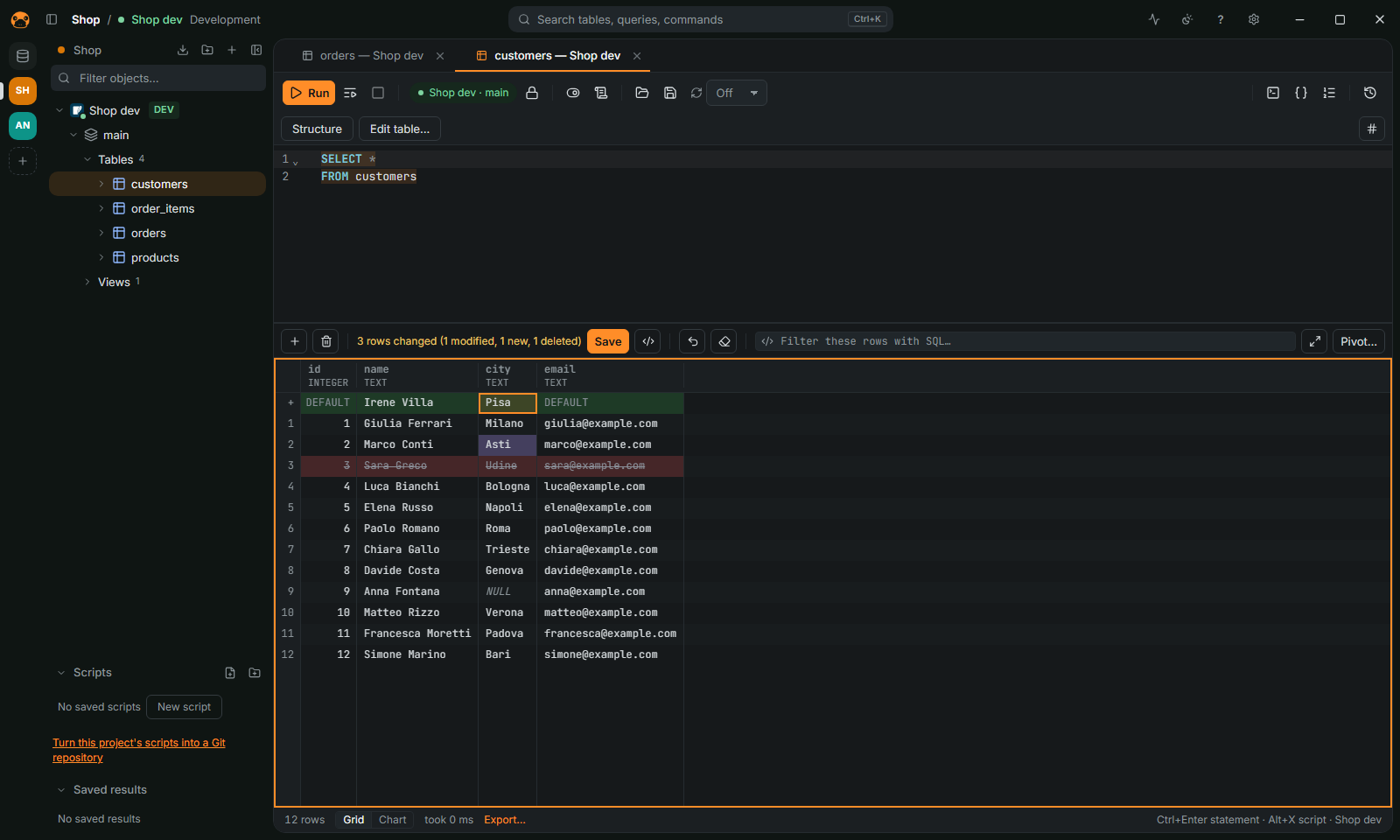
- Change cells in place (double-click,
F2or just type), set NULL or the default, add, duplicate and delete rows. Changes stay highlighted until you save. - Preview the SQL and save it all or nothing; in manual-commit mode the changes join the open transaction. Every save leaves an undo script that puts the rows back.
- Tables need a primary key or a unique key on non-null columns, or a virtual key you pick; otherwise the grid says why it is read-only. Results of a query that reads one table edit the same way, with computed columns read-only.
- Paste cells from a spreadsheet or CSV over the grid or as new rows.
- Edit a whole selection from the grid's menu (Edit selection): one value, NULL or DEFAULT in every cell, checked against each column's type; fill down from the first row (
Ctrl+Alt+D,Ctrl+Shift+Don macOS); find and replace in the text cells, as typed or with a regular expression, with the count shown before applying (an expression too slow is stopped); a number sequence down each number column. Only the rows loaded in the grid change. Cells that cannot take a value are listed and left as they are; the rest become pending changes like typed ones, so you preview, save or undo them together. - Load a cell from a file (grid menu or the cell editor's
…button): bytes into binary columns, UTF-8 text into text columns; files over 50 MB ask first, files over 200 MB are refused. - Foreign keys show the name of the row they point to and edit with a list of those rows; the column that gives that name is the table's row label.
- PostgreSQL arrays and composite values edit one element or field per line.
Table editor
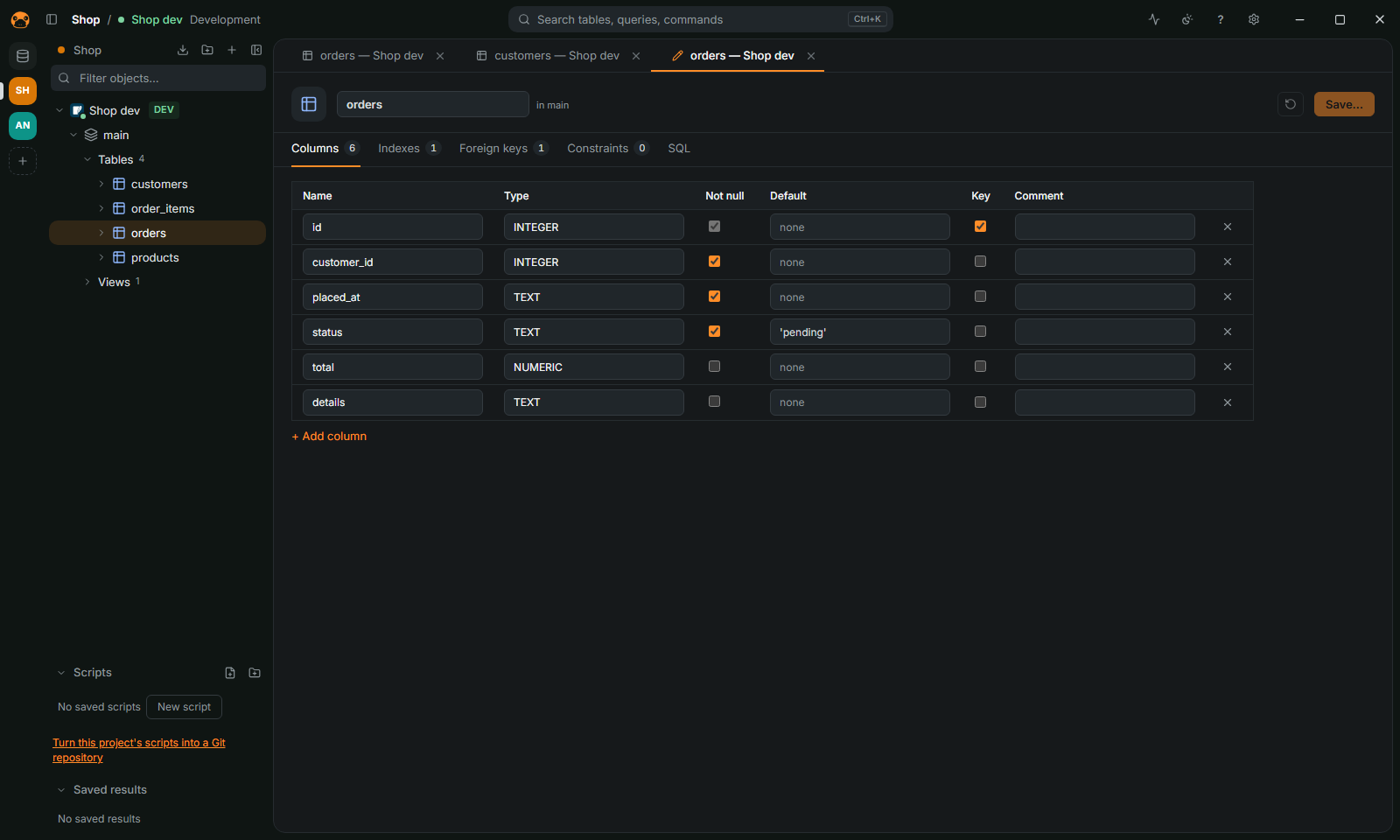
Right-click a table, Edit table… (F4), or a schema, Create table…; Edit table… is also in a table's tab, next to Open data, and in the data viewer's bar, next to Structure, which opens the table's tab. Either brings forward the editor already open on the table. Columns (type, NOT NULL, default, primary key, comment), indexes, foreign keys with their ON DELETE/ON UPDATE actions, and UNIQUE and CHECK constraints. Saving shows the CREATE TABLE or ALTER TABLE script first and runs it in one transaction where the database can roll DDL back (MySQL commits each statement). SQLite and DuckDB, which alter little in place, get the table created again with its rows copied.
ER diagrams, schema check, comparison and history
- ER diagram: right-click a schema, ER diagram, or some selected tables, Show in ER diagram. Tables are laid out from their foreign keys, right of the tables they reference, each group of linked tables in its own block, in an order that keeps lines from crossing, with the lines running between the tables rather than over them; drag them where you want them, drag the empty background to move the view, choose the tables with Add tables… (a loading state shows while they are read), add notes. The diagram is kept with its tab and exports to SVG or PNG. A schema of more than 100 tables asks which ones to show first. Fit zooms so the whole diagram shows; Full screen gives the diagram the whole window (Esc leaves it); Refresh reads the schema again and keeps every table where it is, new tables below.
- Draw the schema: Edit on the diagram (not on read-only connections) adds tables, changes or drops existing ones in the table editor's form, and draws a foreign key by dragging the small circle of a column onto another table (to its primary key). The edits stay with the tab until discarded; Generate DDL opens the script that makes them, tables in the order their foreign keys need, in the SQL editor.
- Create view, function, trigger or sequence: right-click a schema, Create, or a table, Create trigger…: a form for the object with the SQL previewed as you type, then Open in editor or Create. PostgreSQL triggers get their trigger function written too.
- Check schema…: tables without a primary key, foreign keys without an index, duplicate indexes and indexes that another one starts with, foreign keys of another type than the column they reference. The
CREATE INDEXorDROP INDEXthat fixes a finding opens in the SQL editor, to review and run there. - Compare with…: pick another schema of the same kind of database, on this connection or another one: the script that makes it like this one (tables created, altered and dropped, in an order the foreign keys allow) opens in the SQL editor of that connection. Tables and their parts are matched by name, so a renamed column is a dropped column and a new one. Output can also save the script as a Flyway migration (
V<timestamp>__<description>.sql) or a Liquibase changelog in formatted SQL, one changeset per statement. - Compare data with…: right-click a table and pick a table of another database of the same kind (or of this one): rows are matched by primary key, optionally filtered with a
WHEREcondition, and counted as same, only in the source, changed or only in the target, with the first 200 differences shown cell by cell. Open script gives theINSERT,UPDATE(changed columns only) and, if asked,DELETEstatements that make the target like the source. Up to 500,000 rows per table. - Schema history: snapshots of a schema's tables, taken by hand or by a scheduled task (only when something changed); tick two, or one and Now, to see what changed by table and open the script between them.
- Migration status…: point it at a project folder and see which Flyway, Liquibase, Prisma, Alembic or Rails migrations the database has applied, which are pending, which were changed after being applied (Flyway and Prisma checksums), failed, or exist only in the database.
Visual query builder
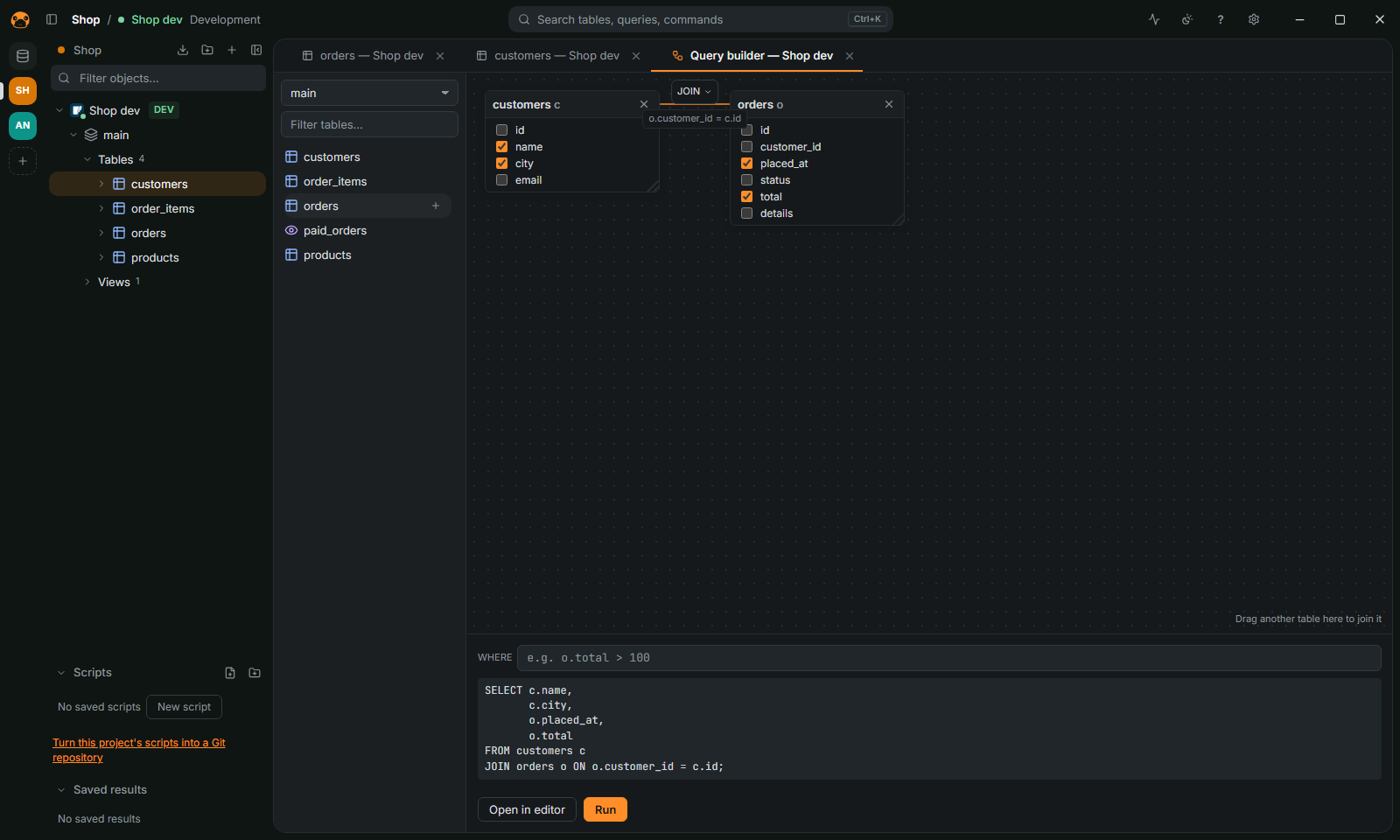
Drag tables onto a canvas, or add them from the list with Enter or their +: they join on their foreign keys. The join button between two tables shows its condition and switches between JOIN and LEFT JOIN. Tick the columns, add a WHERE, then run the SELECT or open it in the editor. The tables list beside the canvas and each table box resize by their edge or corner; the list keeps its width.
Query plans and performance
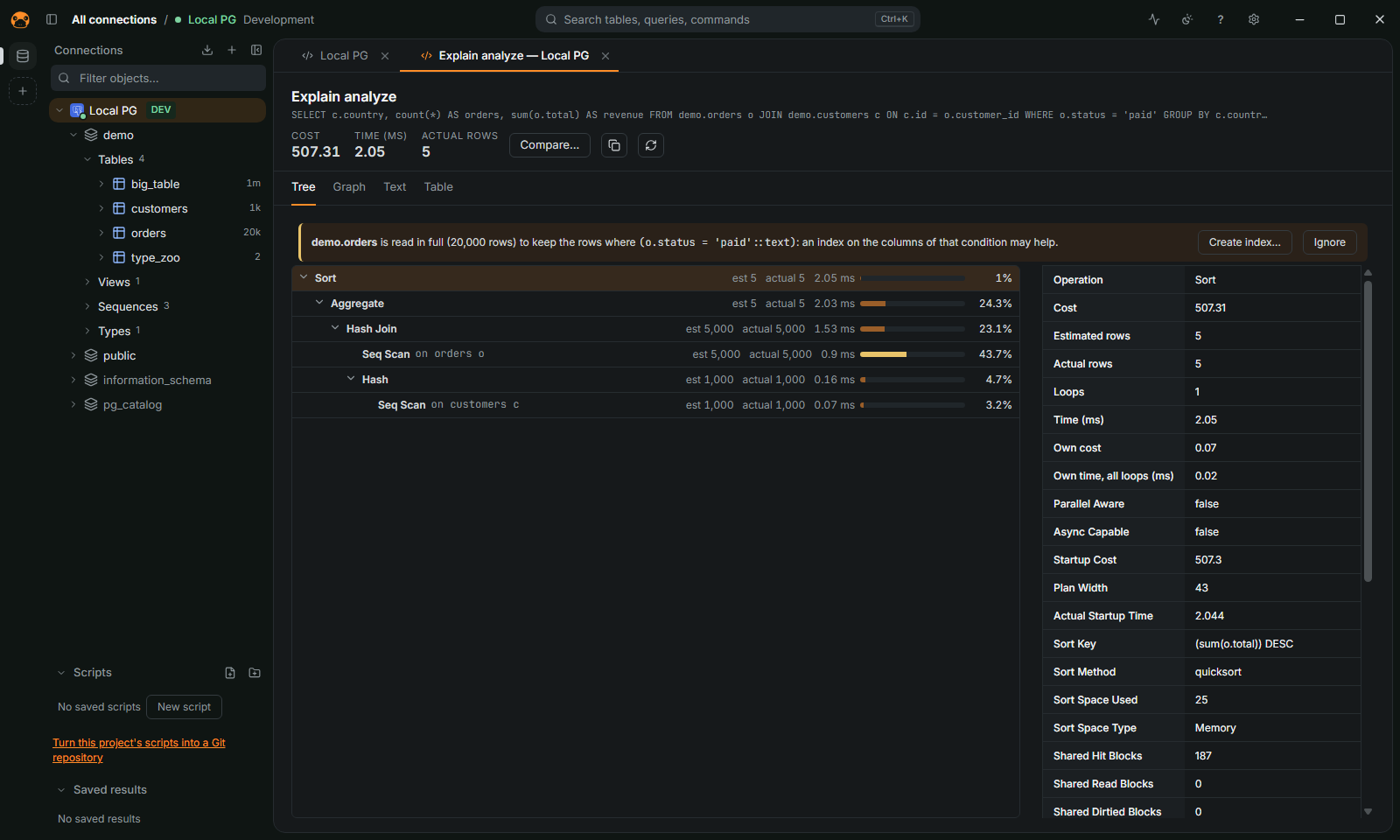
Ctrl+Shift+Eopens the plan of the statement under the cursor as a tree with costs, estimated rows and each step's details, as indented text or as a table.- Explain analyze runs the statement for actual rows and times, then rolls back what it changed (tables that ignore transactions, like MySQL's MyISAM, keep the changes). PostgreSQL, CockroachDB, MySQL 8.0.18+, MariaDB and DuckDB analyze; SQLite, libSQL, Oracle and ClickHouse give the plan only, and SQL Server its estimated plan.
- A heatmap tints each step by its share of the time it spends itself, and a badge marks row estimates 10 times off or more.
- A table read in full (10,000 rows or more) to keep the rows matching a condition gets a suggestion to index that condition's columns.
- The graph view draws the plan as boxes joined by lines: each step tinted by its share of the work, each line as thick as the rows it carries; Fit shrinks a large plan to the view.
- Compare… lines a plan up with its previous run (after Refresh, e.g. once an index is added) or with another plan: the whole plan's time or cost before and after, and each step's own, with the steps replaced, added or gone.
- Open query plan… (command palette, or the connections list's menu) reads a plan pasted or opened from a file, from a server log or a colleague, without a connection: PostgreSQL's JSON or text (as psql prints it), CockroachDB's, MySQL's tree, MariaDB's JSON, SQLite's
QUERY PLANand SQL Server'sSHOWPLAN_TEXT, recognized or chosen.
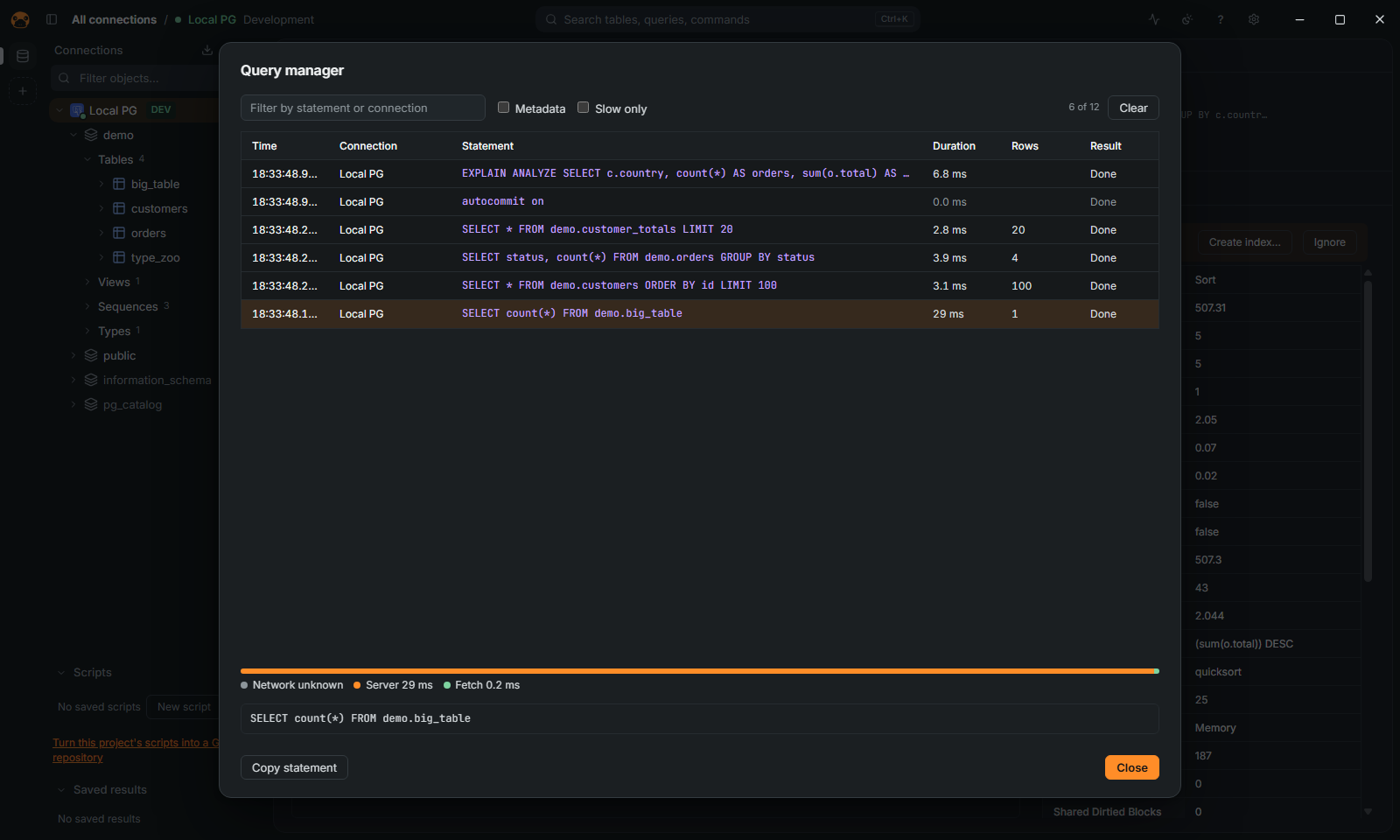
- Query manager (
Ctrl+Shift+M): every statement, metadata request, commit and rollback the app sent, with connection, duration, rows and outcome; the last 2,000 are kept in memory. A statement's trace splits its time into network, server and fetch. - Statements slower than a threshold (5 s by default) are marked in the status bar and listed apart.
Server activity
- Server activity… on a PostgreSQL, MySQL, MariaDB or SQL Server connection lists the server's sessions: user, database, client, application, state, the statement running and for how long, what it waits for and which sessions it waits for. It refreshes every few seconds (or on demand), filters by any field, and opens a statement in the editor.
- Cancel statement stops the statement of another session and keeps the session (PostgreSQL, MySQL, MariaDB); End session closes it, rolling back its transaction. Both ask first, are refused on read-only connections, and are written to the query manager. The app's own session cannot be ended from there.
- Locks shows the waiting chains (who blocks whom, a deadlock cycle once) and the locks held or waited for, with their table where the server tells it. Seeing other users' sessions and locks needs the server's rights:
pg_read_all_statsor superuser, MySQL'sPROCESSandSELECTonperformance_schema, SQL Server'sVIEW SERVER STATE. - Costliest statements: the statements that took the server most time, summed over their runs (PostgreSQL's
pg_stat_statements, MySQL's and MariaDB'sperformance_schema, SQL Server's plan cache), ordered by total time, mean time or calls, with their rows; one opens in the editor or in a query plan. Without the statistics the tab says how to turn them on. - Tables and indexes: size, rows, dead rows or unused space, full scans and index reads, last vacuum and analyze, each index under its table. "Only those worth a look" keeps the unused indexes, the big tables read whole more than through an index, those with many dead rows or unused space, and those never analyzed.
- Maintenance of a table, from its details there or from its menu in the navigator:
VACUUM,ANALYZEandREINDEXon PostgreSQL;ANALYZE,OPTIMIZEandCHECK TABLEon MySQL and MariaDB;UPDATE STATISTICS, an index rebuild andDBCC CHECKTABLEon SQL Server. Each asks first and shows what the server said. - Parameters: the server's settings with their value, default, source and description, searchable, with Only changed; Open in the editor writes the statement that changes one (
ALTER SYSTEM SET,SET GLOBAL,sp_configure…) for you to run. - Dashboard: connections, transactions and statements per second, cache hit ratio, database sizes, replication and uptime, with their recent history; what the server does not let the login read shows "—" and why.
- Users and roles: the server's users and roles with their attributes, memberships and privileges; create, change and drop them, grant and revoke privileges on databases, schemas, tables and routines (with grant option) from a form, with the SQL previewed first. Passwords are masked in the preview and never reach the query log. PostgreSQL, MySQL, MariaDB, SQL Server and ClickHouse.
- Debug… a PL/pgSQL function or procedure (PostgreSQL with the
pldebuggerextension): arguments in a form, then step into, step over, continue (F11, F10, F5), breakpoints on the source, the stack, variables you can change, and the result at the end. - Back up… and Restore… of a PostgreSQL or MySQL database (or a PostgreSQL schema) with its own tools on the PATH (
pg_dump,pg_restore,psql,mysqldump,mysql), through the connection's tunnel or proxy, table by table with a progress bar. Apg_dumparchive restores withpg_restore, optionally dropping its objects first; a SQL file runs throughpsqlin one transaction, or throughmysql, where views, triggers and routines are made by the connection's user instead of their original definer. - Scheduled tasks (command palette, or Schedule a task… in a connection's menu): run a SQL script, export a query to CSV, JSON, Parquet or Excel, or back up the database (with its tools for PostgreSQL and MySQL, as the SQL dump of a schema for the others) every hour, day, week or month at a time in a time zone. Exports and backups go to a folder that keeps the newest files; a failed run is tried again a few minutes later if asked. The list shows each task's next run and its last runs, with Run now. Tasks run while the app is open, a time missed while it was closed at the next start, with the connection's saved password.
Import, export and transfer
- Export to CSV, JSON, NDJSON, Parquet, Excel, SQL
INSERT, Markdown, HTML or XML, streamed straight to the file; several tables or a whole schema at once. Optional gzip or zstd compression, and upload to a signed URL or to an S3, GCS (HMAC keys), R2 or MinIO bucket; the secret key is never saved (a saved profile keeps it in the password store). CSV cells that a spreadsheet would run as a formula (starting with=,+,-,@or a tab, numbers aside) get a leading'by default (Formulas as text, for spreadsheets), so that a shared file cannot run commands or send data when opened in Excel or LibreOffice; turn it off for a file read by another program. - Import CSV, TSV, JSON, NDJSON, Parquet and Excel into a table, with a preview and a mapping of columns, adding the rows, replacing them or updating those with the same key; or into a new table created with the types DuckDB infers. Paste CSV as a new table… imports the clipboard.
- Copy a table to another database (PostgreSQL to MySQL, SQL Server to SQLite and every other pair), streamed, into a new table with the types mapped or into an existing one.
- Copy a schema to another database: each table with its columns, keys and identity column, then its defaults, indexes, foreign keys and CHECK constraints; between databases of one kind the views, functions, procedures and triggers too.
- Transfer profiles: an export, import, table copy or schema copy can be saved with all its choices (Save as profile… in its dialog; Save profile replaces the one that was opened) and run again from Transfer profiles… (command palette, or a connection's menu for its own), which also opens a profile in its dialog, renames, deletes and schedules it. A bucket's secret key and a signed upload URL are kept in the password store, never in the profile file. A schema copy saved for a whole schema copies the tables it has when it runs. A profile used by a scheduled task cannot be deleted; opening one tells you about tables and columns that are gone.
- Fake data for a table: names, emails, numbers, dates, enum values, foreign keys that point at existing rows, distinct values for unique columns.
- Data files as databases: drop a CSV, JSON, Parquet or Excel file on the window to query it with SQL; each Excel sheet is a table.
- Run SQL file… on a connection or database runs a
.sqlfile (or.sql.gz,.sql.zst) of any size statement by statement, with progress and Stop, by default in one transaction that a failure rolls back. Dump to SQL file… on a schema or on chosen objects writes their DDL and, if wanted, their rows to one file that runs again elsewhere. - Imports and copies into PostgreSQL use
COPY, into MySQLLOAD DATA LOCALwhere the server allows it, into SQL Server its bulk copy (OPENJSONinserts for tables withmoney,xmlor legacy columns) and into DuckDB its appender.
MongoDB
Statements in mongosh syntax: db.orders.find({ status: 'paid' }).sort({ placed_at: -1 }).limit(10), aggregate, countDocuments, distinct, insertOne/insertMany, updateOne/updateMany, replaceOne, deleteOne/deleteMany, bulkWrite, findOneAndUpdate and the like, index and statistics methods, .explain(), db.runCommand and the server's helpers (users, profiler, rs.status), show dbs, show collections and use, with every option passed on, with the shell's values (ObjectId(...), ISODate(...), NumberLong(...), /regex/i) and Extended JSON. Results are a grid of the top-level fields with the focused document as a tree beside it (F7). The navigator lists databases, collections, fields sampled from the documents and indexes; the editor completes collections, methods and fields. Generate data fills a collection with fake documents: new ObjectIds or numbers after the largest _id, lists of words for arrays, small documents for nested fields. mongodb+srv:// and connection string options go in the Database field (shop?authSource=admin&replicaSet=rs0).
Editing: the result of a plain find on one collection (the data viewer, or a statement you type; not a view, an aggregation or a projection without _id) is edited in the grid by _id. Each change is one updateOne, insertOne or deleteOne that Preview SQL shows, written with the BSON type of the column (int, long, double, decimal, bool, string, objectId, date, document, array); a changed number keeps the numeric type the document stores when that type holds it exactly. Changing _id, columns of mixed types or of binary data, and fields with a . in their name or starting with $ are refused with the reason. Each command must change one document. On a replica set a save is all or nothing, in a transaction of its own or in the one you have open; on a standalone server the commands run one after the other. Details in the MongoDB guide.
Manual commit works on a replica set or a sharded cluster, not on a standalone server. The reads and writes of documents, createCollection and createIndex run in a transaction of the connection's session, opened at the first change (reads before it open none and see what is committed) and ended by Commit or Rollback; metadata, the server's commands and the navigator run outside it. What MongoDB does not run in a transaction (drop, renameCollection, dropIndex, createView, $out, $merge) is refused in manual commit, leaving the transaction as it was. When the server ends a transaction (after 60 seconds by default, or on a duplicate key or a write conflict), the error says so, the changes are discarded and the transaction shows as closed. Details in the MongoDB guide.
Redis
The editor runs Redis commands, one per line, quoted as redis-cli quotes them (SET k "a b", "\xff" for bytes); # and -- lines are comments. Replies are rows: a value, a map's fields, a list's items, nested replies as JSON in the document tree beside the grid (F7). SELECT n moves the session to another database; MULTI queues commands until EXEC, which sends them as one transaction and shows each reply. Subscriptions and MONITOR are refused: they would take over the connection. Cancel stops a blocking command (BLPOP, XREAD BLOCK).
The navigator lists the databases with keys (db0, db1…, and the session's), each with a table per key type: string, hash, list, set, zset, json (with RedisJSON) and stream, with how many keys each has when the database has up to 10,000. Opening one runs BROWSE db0.hash, which finds the keys with SCAN … TYPE (never KEYS) and reads big keys a chunk at a time as the grid scrolls: a row per value, key, value, ttl for strings and JSON, key, field, value for hashes, key, index, value for lists, key, member for sets, key, member, score for sorted sets, key, id, fields for streams. MATCH user:* filters the keys, LIMIT n caps the rows. Values that are not UTF-8 show quoted with escapes.
The grid edits the rows: a value (SET … KEEPTTL, HSET, LSET, JSON.SET), a TTL (EXPIRE, PERSIST for NULL), a string key's name (RENAMENX), a hash field or a set or sorted set member (moved), a score; new rows add keys and items (SET … NX, HSETNX, RPUSH, SADD, ZADD NX, XADD), deleted rows remove them (list items by their index). A new or renamed key, field or member that already exists stops the save before anything runs, unless the same save deletes it. The preview shows the commands, which run as one MULTI/EXEC (a command the server refuses does not undo the others), and Undo script puts the values back. FLUSHDB and FLUSHALL ask first as an UPDATE without WHERE does, and on production connections commands that change the server (CONFIG SET, SHUTDOWN) ask like DDL. Read-only connections run only the commands that read. rediss:// URLs and SSL modes from require up use TLS; the user and password are the ACL's. Terminal mode runs redis-cli with the password in its environment.
Elasticsearch and OpenSearch
One driver for both; the server says which it is, and the connection shows it (Connected: OpenSearch 2.17.1). Tested on Elasticsearch 8.15 and OpenSearch 2.17, not on Elasticsearch 7.x. Log in with a user and password (Basic), or leave the user empty and put an API key (the encoded value) in the password field. elasticsearch://user:pass@host:9200/logs-* and opensearch:// URLs work; elasticsearchs:// and SSL modes from require up use TLS. The optional index pattern of the connection (logs-*, or several separated by commas) narrows what the navigator lists.
The editor takes requests as Kibana's Dev Tools console writes them: a line GET /orders/_search (the slash is optional; methods GET, POST, PUT, DELETE, HEAD), then its JSON body, which ends where its braces close. The NDJSON bodies of _bulk and _msearch end at a blank line or the next request. Anything else is SQL (_sql on Elasticsearch, _plugins/_sql on OpenSearch), ended by a ; or a blank line, with typed columns (numbers, booleans, dates) and the cursor of the server for long results. #, // and -- lines are comments, Ctrl+Enter runs the statement under the cursor and Alt+X the script. Highlighting follows the kind of statement; completion offers the methods, the indices, the APIs after an index, the fields of the index where a key of a body goes, and the same names in SQL. A search gives documents, laid out as MongoDB's: a column for each top-level field, objects and arrays as JSON in the document tree beside the grid (F7). Aggregations come as results of their own (the metrics in one row, a table per bucket aggregation), a _msearch gives a result per search, and a _bulk with failing items lists the items with the server's reason. Errors keep the server's reason (no such index [x]), and an SQL error points at its place in the statement. Cancel stops a search on the server.
The navigator lists the indices as tables, with their health, shards and replicas in the tooltip (system and closed ones say so), and the aliases and data streams as views. Hidden indices stay hidden. The columns of an index are the fields of its mapping (customer.address.zip for objects, title.raw for multi-fields). Opening an index runs a search of all its documents and reads them a page at a time (1,000 rows, then Fetch all) with a point in time and search_after (a scroll on OpenSearch), so a read does not stop at the first 10,000 hits. The columns are the same on every page: a field that no mapped column has goes into a last _other column as JSON, and a value that does not fit its mapped type shows as text.
The grid edits the documents: a changed cell is an _update by _id, an object replaces the old one, a new row is a _create when it has an _id (an _id that exists is refused by the server) and a generated document without one, a deleted row is a DELETE. The preview shows the requests, which run one after the other and wait for the refresh; a request the server refuses stops the rest, and the ones before it stay. Undo script puts the old values back, or the whole _source of a deleted document (a document with a generated _id is left to delete by hand). _delete_by_query and _update_by_query without a query (or with match_all), and DELETE /_all, ask first like a DELETE without WHERE, and say how many documents the index has. Read-only connections run only the requests and the SQL that read. Agents get the same checks through the MCP server.
Transactions and safety
- Auto-commit or manual commit with Commit/Rollback; an open transaction shows how long it has been open and warns after a while (10 minutes by default). Clicking it lists the changes that wait for Commit, with Commit and Rollback.
- An
UPDATEorDELETEwithoutWHERE, or aTRUNCATE, asks first and says about how many rows it changes. - On production connections every change is listed and confirmed before it runs. That includes settings beyond the session (
SET GLOBAL,SET PERSIST,SET PASSWORD,RESET MASTER, aPRAGMAthat writes the file such asuser_version = 42); a session'sSET, aPRAGMAthat reads (table_info(t)) or sets the connection only (foreign_keys), andANALYZErun as usual. - The lock button makes one editor tab read-only without changing the saved connection.
- Settings › Safety can add a
LIMIT(TOPon SQL Server) to queries run from the editor that have no row cap of their own; off by default. - The transaction log (toolbar) lists what the tab ran, gathered by transaction with how each ended.
- Before an
UPDATEorDELETEof one table runs from the editor, the rows it changes (up to 10,000) are kept as the statements that put them back: Restore… in the transaction log, or Snapshots before changes… in the palette, opens that script. On by default. - A connection can forbid exports (no file, other database or agent gets its data) and data editing (rows change only by SQL: no grid edits, imports or generated rows).
- Mask sensitive data (Ctrl+Alt+M) shows the sensitive columns (named in Settings › Safety by name or type, or marked in the table's tab) as dots while the screen is shared; copies keep the values. Agents read them masked on their own (
run_query,sample_rows, what the user shares of a tab), unless Settings › Agents › Security shows them on that connection. - With a master password, the app can lock after some idle minutes, closing the production connections; Lock PlatypusDB in the palette locks it at once.
Workspace
 | 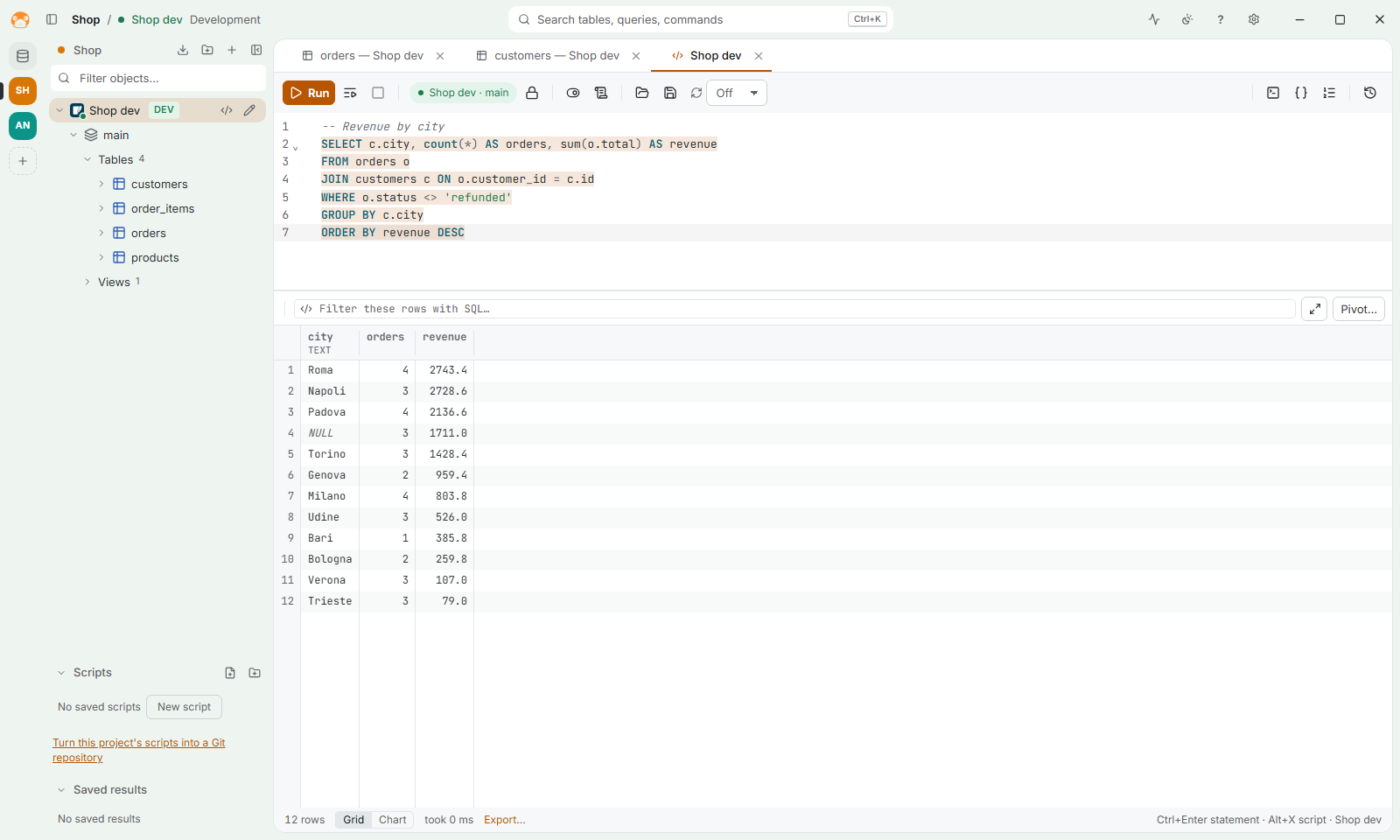 |
- Projects: a rail of colored squares on the left, one per project (a client, an environment, a side job). A project shows only its connections, tabs and recent queries; a connection can be in several projects.
Ctrl+1is All connections,Ctrl+2… the projects. - The frame shows where you are: the bar on top names the project and the connection of the active tab, and the window frame takes the color of its type, green for development, blue for test and red for production. On Windows and Linux the bar is also the window's title bar, with its buttons (Settings › Appearance › Title bar puts the system's back).
- Command palette (
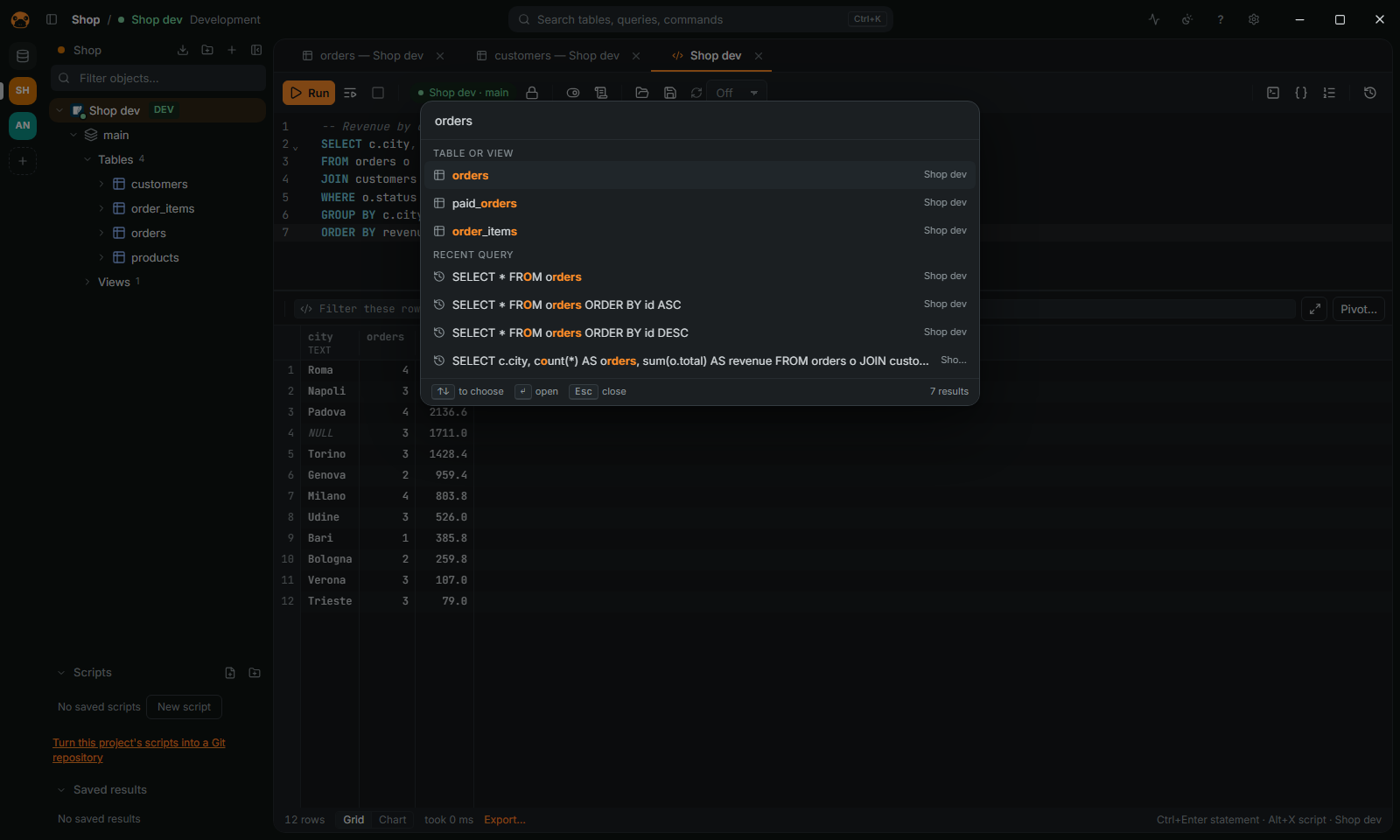
Ctrl+K): actions, connections, tables, saved scripts (by name) and recent queries, found by typing a few letters. - Resizable navigator: drag the edge between the connections and the work (or focus it and use the arrows); a double-click brings back the default width.
Ctrl+B, or the button at the left of the top bar, hides and shows it. - Tabs: a right-click pins a tab (it stays first, as an icon), opens it beside the active one or closes the others or those to its right; Settings › Tabs groups them under their connection's name, and a click on the name folds the group.
Ctrl+Shift+Treopens the last closed tab. - Split editor (
Ctrl+Shift+D): two tabs side by side; a click in one makes it the active one. - Panels you can size: drag the bar between the editor and its results, the edge of the side panels of a result or of the editor (history, variables, outline), the details of the server activity, of a query plan and of the agents' access, the options of a chart, or the line between the halves of a split editor; the sizes stay for the next start, and a double-click brings back the default.
- Short menus: the main actions come first, related ones sit in a submenu (Analyze on tables and on the grid; Lines, Cursors and Folding in the editor) and the actions that delete or discard come last, after a line. A right-click on the rail's + offers Open shared project… too.
- A tab in its own window (right-click on the tab › Open in a new window), for a second monitor: it runs there on a session of its own, and Move to the main window brings it back; closing the window keeps it for
Ctrl+Shift+T. - Quick query: the tray icon (Settings › Appearance; on Linux it needs AppIndicator), or Quick query… in the palette, opens a small query window over the others, on the connection used last.
- Drag a table or a column from the navigator into the SQL editor: its name where you drop it, or a
SELECTin an empty editor or withShiftheld. Dropped in a text field, e.g. a filter, it gives its name. - Activity log (the pulse icon on top): the errors shown and the work done in the background, such as connections and catalog loads, with their time, to copy into a report. A query that runs longer than 10 seconds (Settings › SQL editor) ends with a system notification when the window is in the background.
- From the keyboard: arrows, Enter and the menu key (or
Shift+F10) in the navigator, the tab bar, the result grid and the context menus; dialogs keep the focus inside them and give it back when they close, and Enter confirms a dialog's main action (never a destructive one, which takes a click).
Sharing and sync
- Git for scripts: when a project's scripts folder is a Git repository (or after Turn into a Git repository), the Scripts panel shows the branch, changes per script, Commit… of the chosen files, Pull (fast-forward, or merge when both sides moved), Push and the diff of a script. Git must be installed.
- Share query… from an editor tab: a link (
platypus://…) or a.platypusfile with the SQL, its title and, if asked, the parameter values, naming the database but never a password. Opening one (palette, drag and drop, double click) finds the matching saved connection, or offers a new one filled in, and shows the query without running it. - Sync (Settings): settings, connections without passwords, projects and scripts kept in one end-to-end encrypted file in a folder you choose (a cloud drive, a network share); other computers with the same passphrase merge it with their own, keeping both versions of something changed on two sides.
- Shared projects: Share project… writes a project's connections (without credentials) and scripts to a folder a team keeps in Git or on a shared drive; Open shared project… follows it, and each person enters their own password. SQL a teammate sets to run at every connect (a connection's init statements) is shown first and runs only after you approve that exact text on your machine; if the file changes it, you are asked again, and you can always connect without it. Your own init statements never ask. Agents and the
platypusCLI leave out init statements you have not approved. A connection new from a shared project gives agents no access until you choose otherwise; the file never raises what you chose, nor learns it. A${env:NAME}the file adds or changes (and every one of a connection the file sends to another server) is held, written$${env:NAME}and taken as text, until you edit it in the connection's settings: the file cannot send your environment variables to a server of its choosing. An ODBC driver given as a library path, andFILEDSN,SAVEFILEor network paths in a connection string, are left out. A shared query's link or.platypusfile prefills a new connection with its references held too. - Limits for agents, per connection in Settings › Agents › Security: the most rows, bytes and seconds a result or statement may take, calls per minute, and a threshold on the rows or cost a read's plan expects, above which the read is refused (with the plan) before it runs. They only tighten the fixed caps (10,000 rows, 1 MB, 300 s); an agent that asks for more gets the connection's maximum and the result says so. Raising or removing one by editing the file waits for your yes, like the access itself. See AGENTS.md.
- Agent report: Settings › Agents › Activity has a folded Summary per agent and session above the call list: one row per agent and per session (each start of the MCP server) with the period, calls, tables read, rows returned, changes allowed, changes refused and errors. It follows the list's filters, and Export Markdown / Export HTML save it beside Export CSV (the HTML is one file, no script, nothing from outside). Calls made before this version show –. Tables read for a statement are an estimate. See AGENTS.md.
- Agent settings changed outside the app: when
connections.tomlorsettings.tomlis edited to give agents more (agent access, changes run without asking,UPDATEorDELETEwithoutWHERE), agents keep what you allowed and the app asks you, when it starts or gets focus, to accept or undo the edit; see AGENTS.md. - Edits proposed by agents: an agent can propose rows to insert, update or delete in a table (
propose_edits); the table opens in its data viewer with them as pending edits, coloured like your own, and you save or discard them. Nothing is written until you save; rows that no longer exist or values a column refuses are listed in the viewer and the rest is applied. On MongoDB the agent proposes documents of a collection, named by_id. See AGENTS.md. - Plugins (Settings › Plugins): WebAssembly plugins add actions to the editor, the grid and the navigator, a driver for a database reached over HTTP, hooks that see statements with their values masked and may stop a statement or a save, a settings page of their own, with secrets in the system's keychain, tabs and side panels with pages of their own, and computed columns, cell renderers and cell commands in the result grid; each asks for its permissions at install. A page runs in an isolated frame, with no access to the app and no network of its own, and talks to the app through a short list of requests; a grid extension reads sensitive cells as dots, whether or not the screen masks them. A plugin can also be only a theme, with colours and fonts and no code, which joins the theme picker. See PLUGINS.md.
- Plugin catalog (Settings › Plugin catalog): plugins from an index you choose, installed, updated and removed from one page. No address is built in, and nothing is contacted until you set one; the index is read when you open the page or ask. A package is installed only over HTTPS, with the size, hash and identity the index gives, and signed by a key you trust; an unsigned package or an older version needs its own confirmation, and every install shows what it asks first. See PLUGINS.md.
Settings and themes
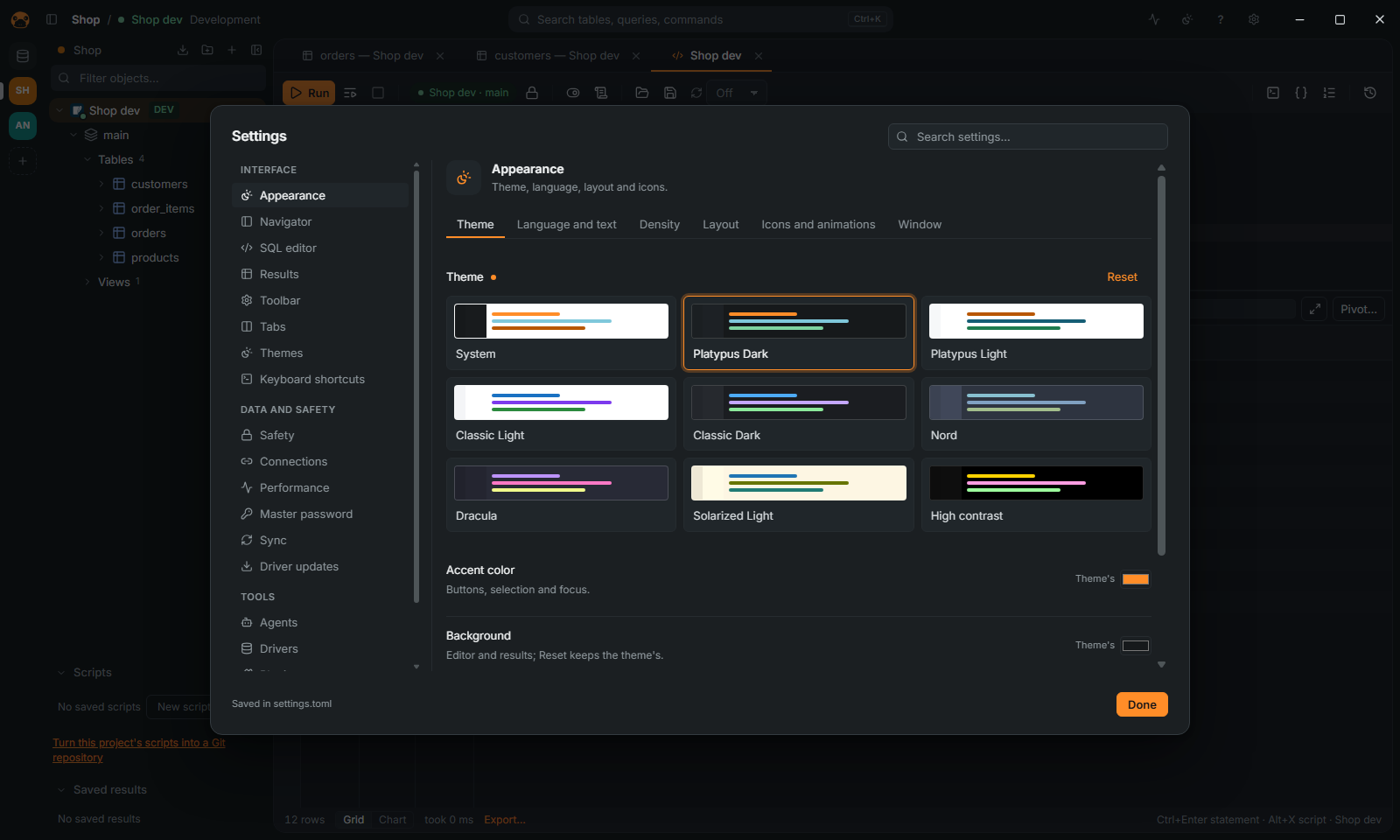
- Help: the ? in the top bar (and the command palette, typing "help") opens the user guide, which comes with the app and works offline, with an index, links between its pages and the screenshots; the keyboard shortcuts; What's new, the changelog of the running version; and Report a bug, which opens the issue page in the browser. A small ? in the connection form, Settings › Agents and Settings › Safety opens the guide at the page about it. The guide is in English.
- Settings (
Ctrl+,) show one section at a time, in tabs, and open again on the last one. Their search shows the matching settings of every section, grouped by section, and finds the keyboard shortcuts by their action's name. - Themes: Platypus Dark and Light (what "System" follows), Classic Light and Dark, Nord, Dracula, Solarized Light and high contrast; your own accent, background, sidebar and text colors, interface size, row density, corner radius and editor font size. Inter and JetBrains Mono are bundled, so the app looks the same everywhere and works offline.
- Layout (Settings › Appearance › Layout), each choice drawn as a small window and applied at once: the navigator on the left or the right, the results below the SQL editor or beside it, the tab bar at the top or the bottom, the side panels (history, variables, the value and metadata of a cell) on the right or the left. The handles keep following the pointer.
- Icons and animations: the icon family of the whole app, Lucide, Tabler or Phosphor (the databases' logos stay); short animations as panels, dialogs, menus and tabs open, never on the data: like the system (its "reduce motion"), on, reduced to short fades, or off.
- Theme files (Settings → Themes): Export saves the theme in use, with your custom colors, as JSON (
{"platypus_theme": 1, "name", "light": {…}, "dark": {…}}, both variants for System); Import previews a file's theme, lists the keys and colors it skips, and applies it or goes back. An imported theme with both variants follows the system's light or dark mode. - Seven languages: English, Italian, Spanish, German, French, Portuguese (Brazil) and Chinese (Settings › Appearance › Language; System follows the operating system's). Numbers and shortcuts follow the language (
Strgin German); messages from the databases stay in theirs. The dictionaries are inapps/desktop/src/i18n/, keyed by the English text, and open to corrections.Ctrl+=/Ctrl+-/Ctrl+0change the interface size; the editor and the result grid have their own font size. - Every shortcut can be changed; the toolbars show icons (each says what it does on hover), and the SQL editor's buttons can be hidden or given their words back.
- Logs and bug reports: the app logs its starts, errors and crashes to
logs/in its data folder (three files of 1 MB at most); nothing is sent anywhere. After a crash it offers a diagnostic package, also in Settings › Diagnostics: a zip with the version, the system, the settings without passwords, connection counts by database and the logs, to attach to a bug report. Error messages in the logs may name a server or a table: look before sharing.