
Connect to a database
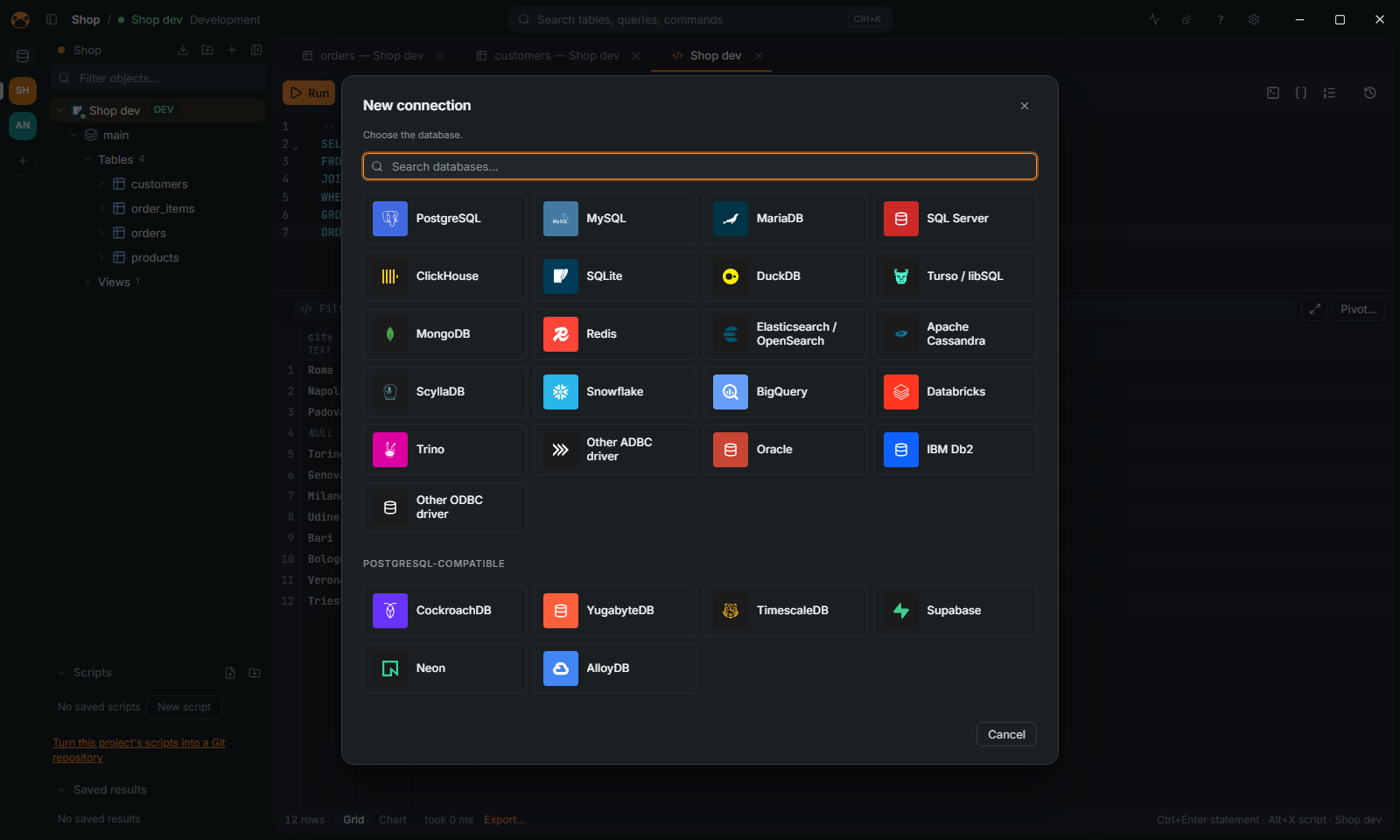
From a URL
- Click New connection (or the
+of the navigator). - Paste the URL under the logos:
postgres://,mysql://,sqlserver://,clickhouse://,libsql://,mongodb://,redis://,rediss://,elasticsearch://,opensearch://, a JDBC URL or an ADO.NET / ODBC string. The form opens filled in for that database. - Put the password in the Password field, not in the URL: the form says so if the URL holds one.
- Click Test connection, then Save.
Or pick the database from the logos (the search on top takes Enter for the first match). The choice sets the driver; Back returns to the logos.
The form
The form has four pages: General, Appearance and safety, Network and Init. A dot after a page's name means it holds settings.
- General: host, port, user, database and where the password comes from (below).
- Appearance and safety: the environment (Development, Test or Production), a color, the Read-only (refuses changes to data) box, the boxes that stop exports and data editing, and the agents' access. See Safety and Agents.
- Network: SSH tunnel, SSL mode and certificates, proxy, port forward and commands around the connection.
- Init: a variables file, a default schema or time zone, and statements that run at every connect.
Passwords
In General, the password comes from one of:
- Saved in the keychain: the system keychain. Test connection sends it only to the server it was saved for: if you change the host, the port or the SSH servers on the way, it asks you to type the password for that test. Another database of the same PostgreSQL or MySQL server is not another server.
- Ask every time: typed at each connection. Agents cannot open such a connection.
- .pgpass file (PostgreSQL only; the connection's host, port, database and user pick the line, as libpq does).
- Shell command: a command that prints the password.
Any field can read an environment variable written ${env:NAME}. Password managers (1Password, Bitwarden, HashiCorp Vault, AWS Secrets Manager) are in the same list for every database whose form asks for a password or a token; none is limited to one database. Give the secret's reference: the app builds the shell command from it (op read, bw get password, vault kv get, aws secretsmanager get-secret-value) and runs it at each connection. Their command-line tool must be installed and signed in. Nothing here has been run against a real 1Password, Bitwarden, Vault or AWS account: only the commands the app builds and the shell command itself are tested.
Some databases sign in with no password at all, and the same list offers them: a token from a cloud's command-line tool (AWS IAM and Google Cloud IAM for PostgreSQL and MySQL, Microsoft Entra ID for those two and SQL Server), Windows' sign-in for SQL Server, and a Kerberos ticket for PostgreSQL on Windows and Linux. Run kinit first, or set KRB5CCNAME or KRB5_CLIENT_KTNAME; on Windows the ticket is your session's. The ticket is the only thing that goes to the server, and a test without one says what to run. The PostgreSQL page has the details, and what is and is not tested: a real ticket has logged in from Linux, not yet through Windows' SSPI.
Master password
A master password keeps the saved passwords in an encrypted file instead of the keychain.
- Open Settings (
Ctrl+,) › Master password. - Click Set a master password…, type it twice (8 characters at least) and confirm.
- To go back to the keychain, click Turn off… on the same page. Lock now locks at once.
It cannot be recovered: without it the saved passwords are lost. Agents cannot enter it (see Troubleshooting).
TLS
On the Network page, SSL mode takes the libpq values: disable, prefer, require, verify-ca and verify-full. prefer and require encrypt without checking the certificate; verify-ca and verify-full check it, so a CA certificate (PEM) may be needed. For servers that authenticate clients by certificate, give the Client certificate (PEM) and the Client key (PEM) (PostgreSQL and MySQL).
SSH tunnel
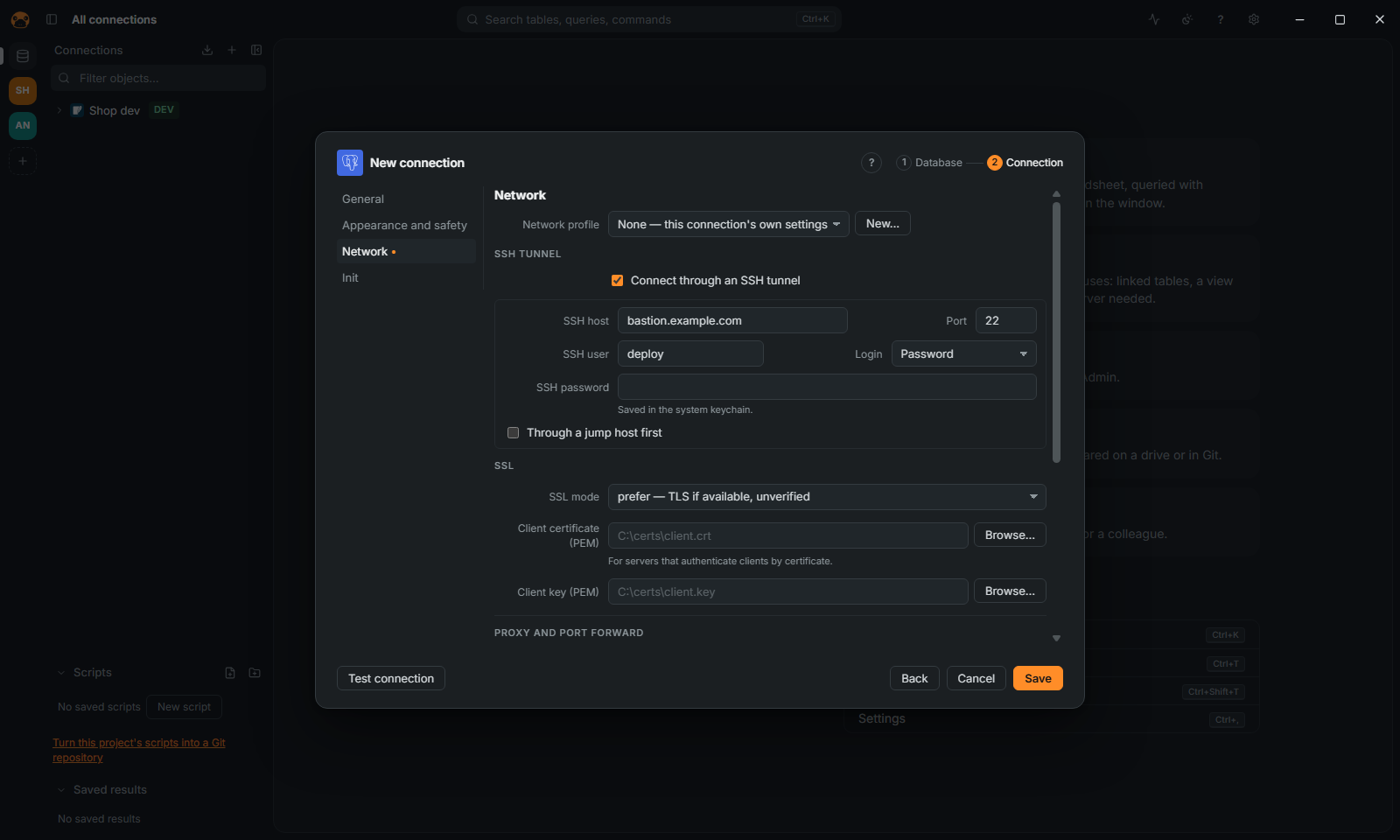
- On the Network page, tick Connect through an SSH tunnel.
- Fill in SSH host, the port and SSH user.
- Authenticate with a password, a Private key file (and its passphrase) or the SSH agent. For a bastion, add a Jump host (Through a jump host first).
- Click Test connection.
The server's key is checked against ~/.ssh/known_hosts: an unknown server is learned the first time, and a key that changed since is refused. A Network profile shares one tunnel and SSL setup between connections.
Proxy and port forward
Also on Network: a SOCKS5 or HTTP proxy (socks5://user:password@host:1080, http://host:3128), or a port forward through kubectl or an AWS Systems Manager session (the CLI must be installed and signed in). A port forward goes alone: remove the SSH tunnel or the proxy.
Next
Details for each database: Databases. Cloud sign-in, poolers, imports from DBeaver, DataGrip and pgAdmin (Db2 connections included), and exporting connections are in FEATURES.md. If it does not connect, see Troubleshooting.